Improving AEM Front-End Development Workflow
In the previous article, Validate AEM Dispatcher Config like Cloud Manager, we looked at keeping dispatcher configs in sync with Adobe’s validation process. That was mainly about the back-end setup.
This time, we will switch to the front-end workflow — where scripts, styles, and component assets live. With Webpack, clientlibs, and linting, you will learn how to:
- bundle and copy assets into AEM,
- enforce coding standards for JS, TS, and CSS,
- and debug/optimize more effectively.
Setting Up Webpack Entry, Output, and Build Foundation
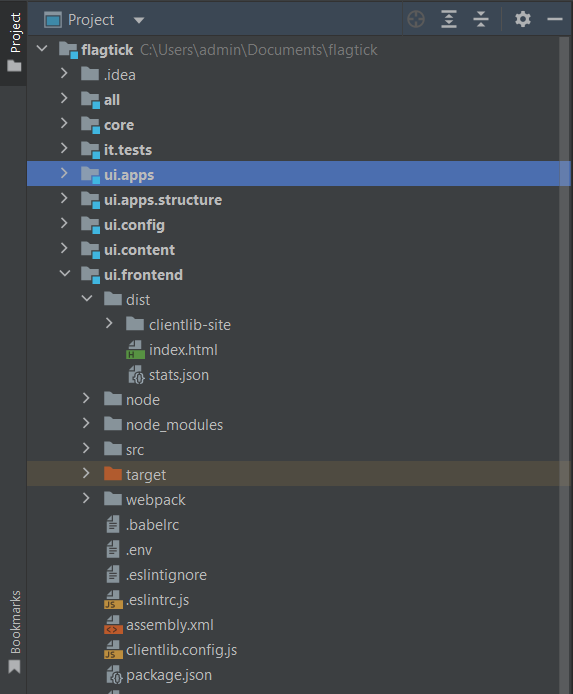
To start, it helps to understand the structure of the frontend module. The package.json file provides an overview of the scripts and dependencies that support the frontend build process.
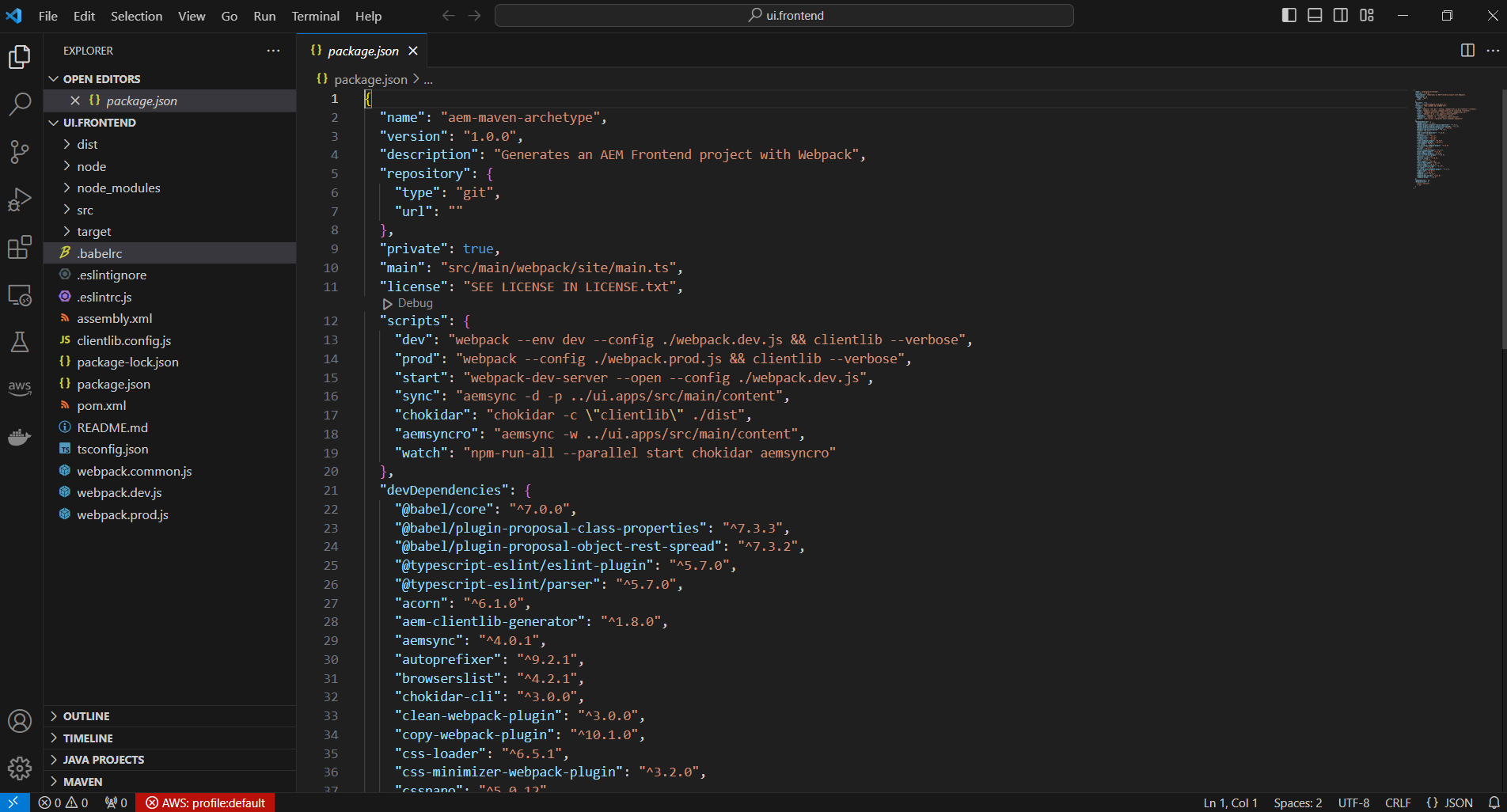
With the overall structure in mind, we can now look at how Webpack knows where the build begins and where the compiled files should be generated. This is defined using the entry and output configuration.
// webpack.common.js
entry: {
        site: SOURCE_ROOT + '/site/main.ts'
},
output: {
    filename: (chunkData) => {
        return chunkData.chunk.name === 'dependencies' ? 'clientlib-dependencies/[name].js' : 'clientlib-site/[name].js';
    },
    path: path.resolve(__dirname, 'dist')
},After defining the entry point and output location, the next step is to configure the source root. This tells Webpack where the frontend source files are located so imports can be resolved correctly.
// webpack.common.js
'use strict';

const path = require('path');
const config = require("./config.json").webpack;
const MiniCssExtractPlugin = require('mini-css-extract-plugin');
const TSConfigPathsPlugin = require('tsconfig-paths-webpack-plugin');
const CopyWebpackPlugin = require('copy-webpack-plugin');
const { CleanWebpackPlugin } = require('clean-webpack-plugin');
const ESLintPlugin = require('eslint-webpack-plugin');

const plugins = require('./webpack.plugins');

const ___dirname = path.resolve(__dirname, '..');
const SOURCE_ROOT = ___dirname + '/src/core/scripts';

// Entry points resolver
const entry = (function () {
  let entryPoints = {};
  Object.keys(config.entry).forEach(key => {
    entryPoints[key] = path.resolve(__dirname, config.entry[key]);
  });
  return entryPoints;
}());Once the SOURCE_ROOT is set, Webpack can correctly resolve the entry file. In this project, main.ts serves as the main file that loads global styles and application scripts.
// Stylesheets
import "./main.scss";

// Javascript or Typescript
import "./**/*.js";
import "./**/*.ts";
import '../components/**/*.js';As the application grows, keeping files well organized becomes more important. Rather than placing all scripts in a single folder, this setup groups JavaScript and styles by component to improve maintainability.
// Stylesheets
import "./main.scss";

/* Components */
import '../../components/content/helloworld/helloworld.js';
import '../../components/content/login/login.js';
import '../../components/content/register/register.js';
import '../../components/content/validate/validate.js';With the code structure in place, the next focus is optimization. To better understand what is included in the final bundle, we can analyze the build output using Webpack’s bundle analysis tools.
// packages.json
"scripts": {
  ...
  "analyzeBundle": "webpack-bundle-analyzer --port 4200 ./dist/stats.json",
  ...
},Before running the bundle analysis, the required tool must be installed. This ensures the analysis command can execute successfully in the ui.frontend module.
npm i webpack-bundle-analyzerAfter installing webpack-bundle-analyzer via npm, the next step is to register the tool in Webpack. This is done by configuring the plugin inside webpack.plugins.js, which centralizes all plugin-related setup.
// webpack.plugin.js
const _BundleAnalyzerPlugin = require("webpack-bundle-analyzer/lib/BundleAnalyzerPlugin");

const BundleAnalyzerPlugin = new _BundleAnalyzerPlugin({
    analyzerMode: 'disabled',
    generateStatsFile: true,
    statsOptions: { source: false }
});

module.exports = [
    BundleAnalyzerPlugin
];Once BundleAnalyzerPlugin is defined in webpack.plugins.js, Webpack can generate required stats files. Running the build with this configuration starts the analyzer and exposes local inspection server.
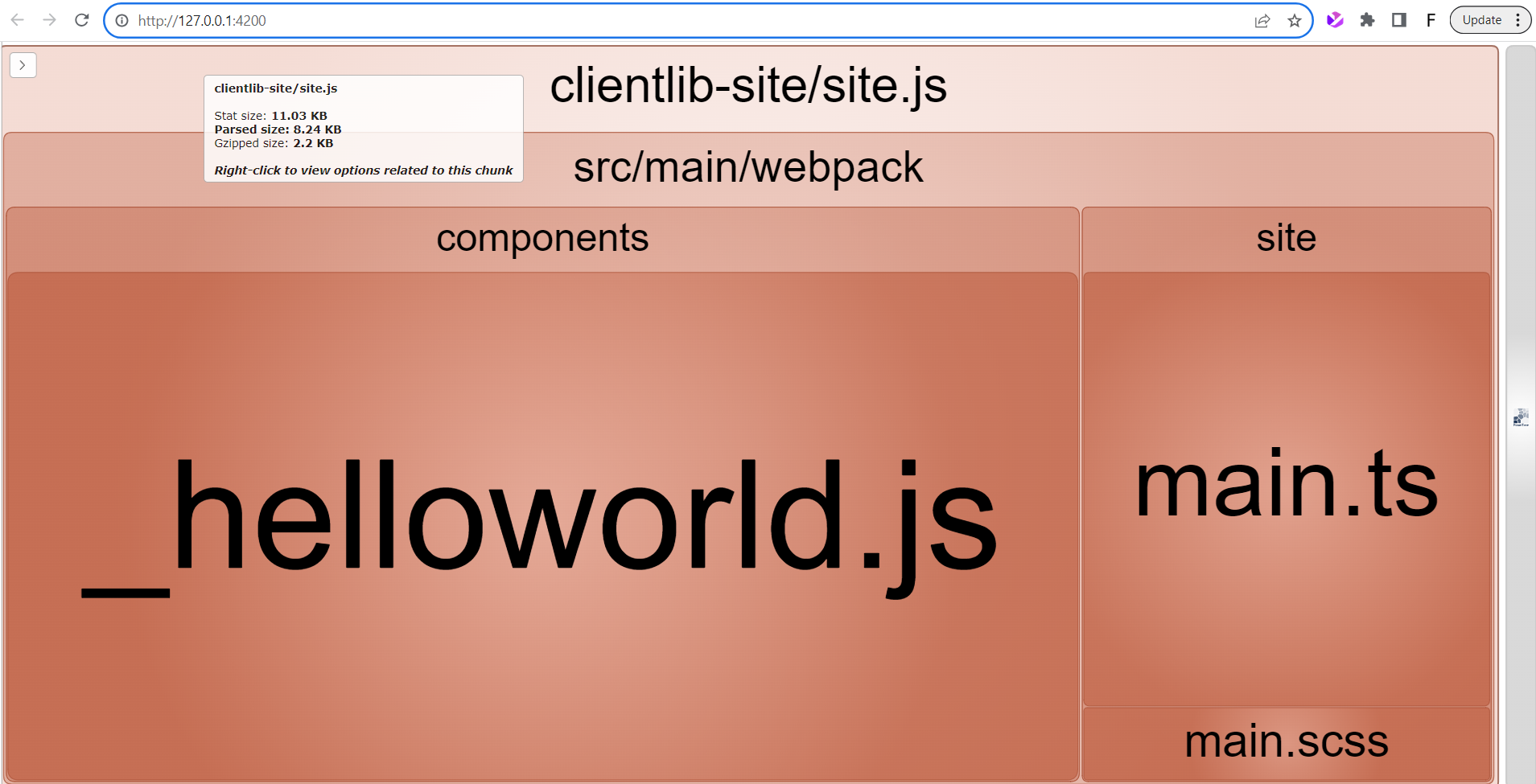
After analyzer verification, plugins are imported from webpack.plugins.js instead of webpack.common.js.
const plugins = require('./webpack.plugins');

plugins: [
    ...plugins,
    new CopyWebpackPlugin({
      patterns:
        [
          {from: path.resolve(__dirname, SOURCE_ROOT + '/resources'), to: './clientlib-site/'}
        ]
    })
],With plugins now managed through webpack.plugins.js, we can focus on debugging support. Enabling devtool: source-map in webpack.common.js allows errors in the browser to map back to the original source files.
// webpack.common.js
module.exports = {
    resolve: resolve,
    devtool: 'source-map',
    entry: {
        site: SOURCE_ROOT + '/site/main.ts'
    },
    ...
}With source maps enabled, stylelint-webpack-plugin enforces styling rules and detects CSS and TypeScript issues during build.
const _StylelintPlugin = require('stylelint-webpack-plugin');

const StylelintPlugin = new _StylelintPlugin({
    extensions: ['pcss'],
    fix: true
});

module.exports = [
    StylelintPlugin
];

// packages.json
"stylelint": "^13.13.1",
"stylelint-config-standard": "^22.0.0",
"stylelint-order": "^4.1.0",
"stylelint-webpack-plugin": "^2.2.0",Once stylesheet linting is configured, the final step is handling environment-specific values. Using Webpack’s DefinePlugin allows variables such as Cognito configuration to be injected safely into the build process.
const _DefinePlugin = require('webpack').DefinePlugin;

const DefinePlugin = new _DefinePlugin({
  COGNITO_REGION: JSON.stringify(process.env.COGNITO_REGION),
  COGNITO_USER_POOL_ID: JSON.stringify(process.env.COGNITO_USER_POOL_ID),
  COGNITO_CLIENT_ID: JSON.stringify(process.env.COGNITO_CLIENT_ID),
});

module.exports = [
    DefinePlugin
];

// .env
COGNITO_REGION = xxxxxxx
COGNITO_USER_POOL_ID = xxxxxxxxxxxxxxx
COGNITO_CLIENT_ID = xxxxxxxxxxxxxxxxxxxxxxxxxxxOnce environment variables are configured with DefinePlugin, entry configuration is centralized in config.json. This allows Webpack to clearly define where JavaScript and CSS bundles start before being generated and later copied into ui.apps module in AEM.
// ui.frontend/webpack/config.json

{
  "aem": {
    "clientlibsRoot": "ui.apps/src/main/content/jcr_root/apps/flagtick/clientlibs/",
    "componentsRoot": "ui.apps/src/main/content/jcr_root/apps/flagtick/components/"
  },
  "webpack": {
    "entry": {
      "site": "../src/core/scripts/main/main.ts",
      "author": "../src/author/scripts/main/main.ts"
    },
    "publicPath": "/etc.clientlibs/flagtick/clientlibs/clientlib-site/resources/"
  }
}With entry points configured, build process generates JavaScript and CSS bundles and copies assets into AEM ui.apps module.
npm run clientlibsCommand output shows client library processing and confirms bundle generation and copy steps.
processing clientlib: clientlib-dynamic-modules
Write node configuration using serialization format: xml
write clientlib json file: /Users/macbook/Documents/Work/Flagtick/Code/ui.apps/src/main/content/jcr_root/apps/flagtick/clientlibs/clientlib-dynamic-modules/.content.xml

processing clientlib: clientlib-author
Write node configuration using serialization format: xml
write clientlib json file: /Users/macbook/Documents/Work/Flagtick/Code/ui.apps/src/main/content/jcr_root/apps/flagtick/clientlibs/clientlib-author/.content.xml

write clientlib asset txt file (type: css): /Users/macbook/Documents/Work/Flagtick/Code/ui.apps/src/main/content/jcr_root/apps/flagtick/clientlibs/clientlib-author/css.txt
copy: clientlib-author/author.css /Users/macbook/Documents/Work/Flagtick/Code/ui.apps/src/main/content/jcr_root/apps/flagtick/clientlibs/clientlib-author/css/author.css

processing clientlib: clientlib-author-dialog
Write node configuration using serialization format: xml
write clientlib json file: /Users/macbook/Documents/Work/Flagtick/Code/ui.apps/src/main/content/jcr_root/apps/flagtick/clientlibs/clientlib-author-dialog/.content.xml

write clientlib asset txt file (type: js): /Users/macbook/Documents/Work/Flagtick/Code/ui.apps/src/main/content/jcr_root/apps/flagtick/clientlibs/clientlib-author-dialog/js.txt

write clientlib asset txt file (type: css): /Users/macbook/Documents/Work/Flagtick/Code/ui.apps/src/main/content/jcr_root/apps/flagtick/clientlibs/clientlib-author-dialog/css.txtThis output provides simplified overview of client library generation process without showing every internal step. At high level, it includes:
- starting the
aem-clientlib-generator - processing the
clientlib clientlib-site - processing the
clientlib-dynamic-modules - processing the
clientlib clientlib-author
Client Libraries & AEM Front-End Workflow
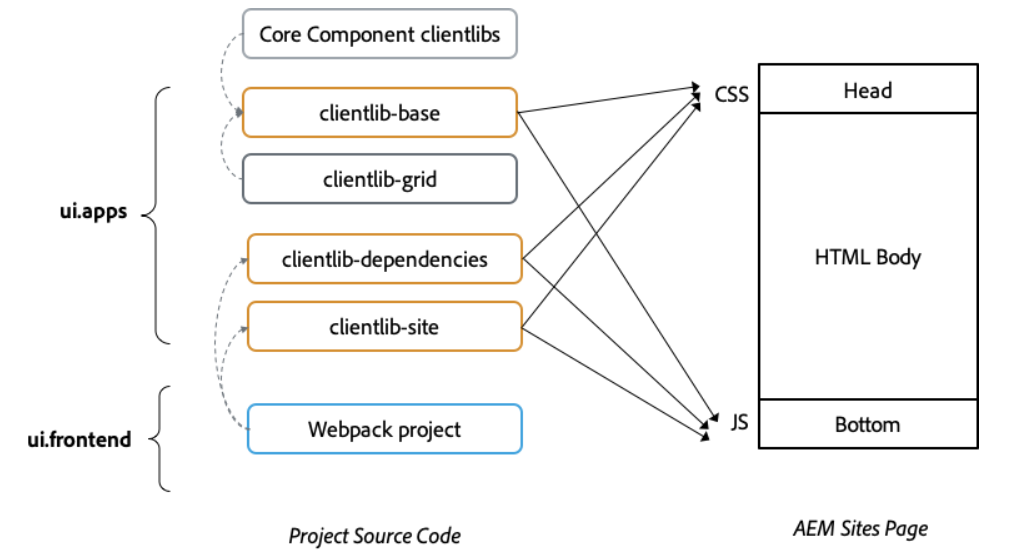
To understand how the AEM front-end pieces work together, the diagram below illustrates how client libraries are organized in an AEM project.
Core clientlibs and project-specific bundles are produced by Webpack and then included in the page, with CSS loaded in the HTML and JavaScript loaded at the bottom of the page for better performance.
Looking at the project structure, you can see how this mapping is reflected in the codebase. Under ui.apps/src/main/content/jcr_root/apps/<site>/clientlibs, the defined client libraries (clientlib-base, clientlib-grid, clientlib-dependencies, and clientlib-site) are stored.
At the same time, the ui.frontend module exists as a separate workspace where Webpack compiles and bundles frontend assets.
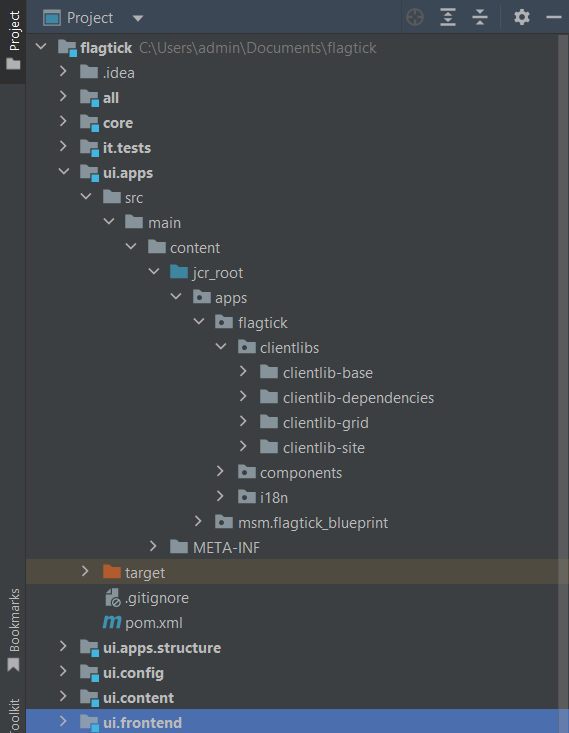
This separation of responsibilities is intentional. The ui.apps module is responsible for holding the clientlib definitions that AEM serves, while the ui.frontend module handles the build process.
Webpack compiles the source code into the dist folder, and the generated output is then copied into ui.apps so AEM can deliver the CSS and JavaScript to pages.
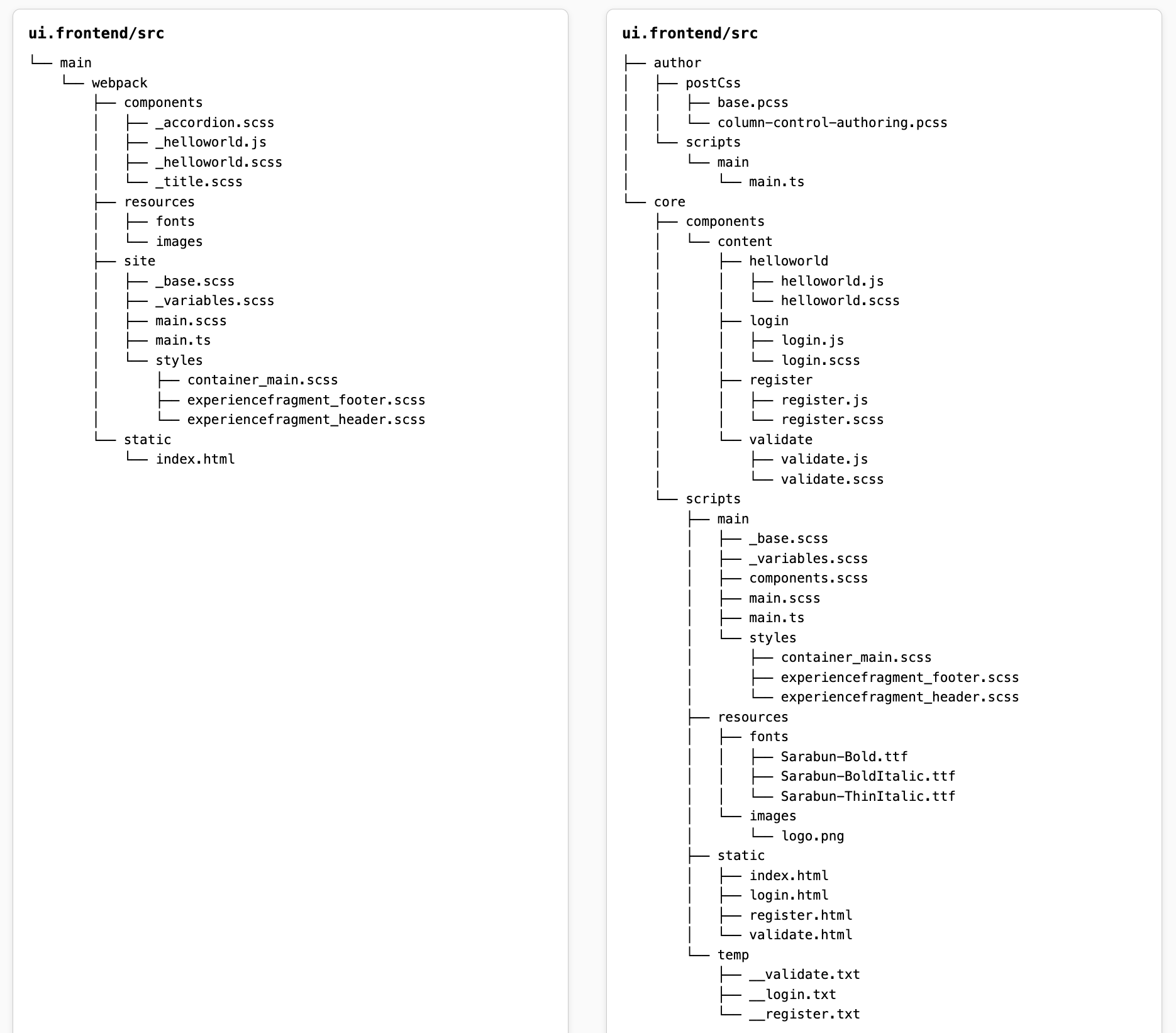
Within the ui.frontend/src directory, frontend code can be organized in different ways depending on project size and complexity.
One approach groups files by type, such as styles, scripts, and resources. Another approach groups files by feature, such as helloworld, login, register, and validate.
For larger projects, the feature-based structure is often easier to manage because each component keeps its JavaScript and SCSS together.
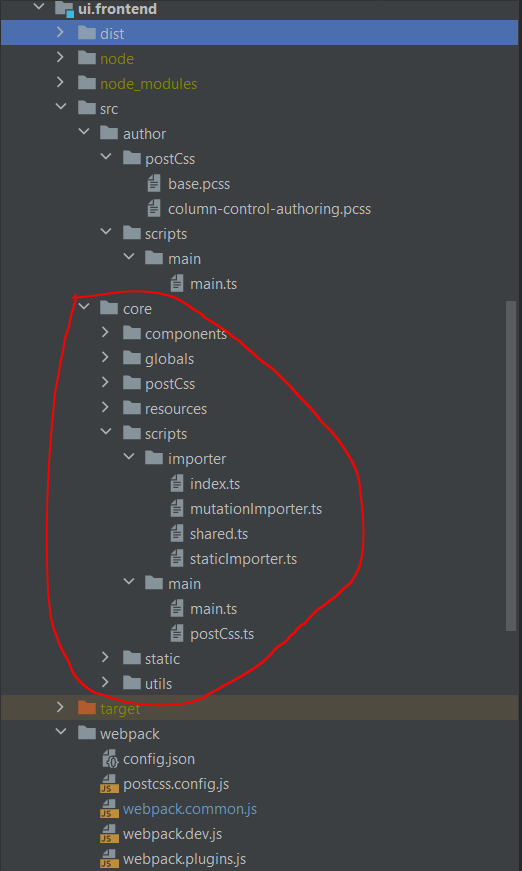
In src/core/scripts/main/main.ts, core folder serves as main site entry point, defining component logic with TypeScript and SCSS/PCSS, importing libraries from node_modules, and managing shared assets.
Author entry adds custom styles for AEM authoring interfaces, including cq-overlay-container, with rules defined in column-control-authoring.pcss.
// ui.frontend/src/author/postCss/column-control-authoring.pcss

.cq-Overlay--component .cq-Overlay--container {
    display: inline;
}Once author-specific styles are introduced, Webpack must be able to process .pcss and .scss files correctly.
To do this, the appropriate loaders need to be configured so styles can be compiled, transformed, and bundled as part of the build. The next step is adding the following rule to the Webpack configuration.
// ui.frontend/webpack/webpack.common.js
{
    test: /\.pcss$/,
    exclude: /node_modules/,
    use: [
      {
        loader: MiniCssExtractPlugin.loader,
        options: {
          publicPath: config.publicPath,
        }
      },
      {
        loader: 'css-loader',
        options: {
          importLoaders: 1
        },
      },
      {
        loader: 'postcss-loader',
        options: {
          postcssOptions: {
            config: path.resolve(__dirname, 'postcss.config.js'),
          },
        },
      },
    ],
}Because Webpack relies on postcss-loader to process .pcss files, the required PostCSS plugins must also be installed and configured in package.json.
These plugins handle common tasks such as nesting rules, resolving imports, managing variables, and converting modern CSS features into browser-compatible output.
» package.json
...
"postcss": "^8.2.15",
"postcss-loader": "^3.0.0",
"postcss-advanced-variables": "^3.0.1",
"postcss-compact-mq": "^0.2.1",
"postcss-extend-rule": "^3.0.0",
"postcss-font-smoothing": "^0.1.0",
"postcss-import": "12.0.1",
"postcss-inline-svg": "^4.1.0",
"postcss-nested": "^4.2.3",
"postcss-nested-ancestors": "^2.0.0",
"postcss-preset-env": "^6.7.0",
"postcss-pxtorem": "^5.1.1",
"postcss-reporter": "^6.0.0",
"postcss-scss": "^3.0.5",
...Beyond processing styles, it is equally important to enforce consistent coding standards. To avoid silent styling errors and maintain predictable CSS behavior, Stylelint is configured to validate .pcss files.
This ensures that custom rules and properties follow agreed conventions. The following configuration can be added to .stylelintrc.json.
{
  "extends": "stylelint-config-standard",
  "plugins": ["stylelint-order"],
  "rules": {
    "order/properties-alphabetical-order": true,
    "at-rule-no-unknown": [
      true,
      {
        "ignoreAtRules": [
          "each",
          "else",
          "extend",
          "function",
          "if",
          "include",
          "lost",
          "mixin",
          "svg-load"
        ]
      }
    ],
    "property-no-unknown": [
      true,
      {
        "ignoreProperties": [
          "lost-center",
          "lost-column",
          "lost-column-rounder",
          "lost-flex-container",
          "lost-move",
          "lost-row",
          "lost-vars",
          "lost-utility",
          "font-smoothing"
        ]
      }
    ],
    "indentation": [4, { "baseIndentLevel": 0 }],
    "selector-type-no-unknown": [true, { "ignore": ["/^^/"] }],
    "declaration-no-important": false,
    "media-feature-range-operator-space-after": "never"
  }
}After setting up Stylelint, the next step is defining how styles are transformed during the build by configuring postcss.config.js.
// postcss.config.js
const postCssSCSS = require('postcss-scss');
const path = require('path');

const paths = {
    components: path.resolve(__dirname, '../src/core/components/'),
    icons: path.resolve(__dirname, '../src/core/resources/icons/'),
    modules: path.resolve(__dirname, '../node_modules/'),
};

module.exports = {
    syntax: postCssSCSS,
    plugins: [
        ['postcss-import', { path: [`${paths.components}`, `${paths.modules}`] }],
        'postcss-advanced-variables',
        'postcss-font-smoothing',
        'postcss-nested-ancestors',
        'postcss-nested',
        'postcss-compact-mq',
        ['postcss-preset-env', { browsers: 'last 2 versions' }],
        'lost',
        ['cssnano', {
            preset: ['default', {
                normalizeWhitespace: false,
                discardComments: { removeAll: true }
            }]
        }],
        ['postcss-inline-svg', { paths: [`${paths.icons}`], removeFill: true }],
        ['postcss-extend-rule', { onRecursiveExtend: 'throw', onUnusedExtend: 'throw' }],
        ['postcss-pxtorem', { propList: ['*'] }],
        'postcss-reporter'
    ],
};Once postcss.config.js is in place, running the development build verifies that PostCSS processes styles correctly and generates the expected client libraries.
...
start aem-clientlib-generator
...
processing clientlib: clientlib-siteExtending Client Libraries Configuration
After confirming the build works as expected, the workflow can be extended by defining additional client libraries for different purposes.
To keep the project maintainable as it grows, client libraries are often split by responsibility, such as site assets, authoring styles, or dialog-specific resources.
clientlib-dynamic-modules– scripts and assets for dynamic page modulesclientlib-author– custom styles for the AEM authoring interfaceclientlib-author-dialog– assets for component dialogs in Touch UI
With these use cases in mind, the client library configuration can be updated to explicitly define each bundle.
{
  ...libsBaseConfig,
  name: 'clientlib-dynamic-modules',
  ...
},
{
  ...libsBaseConfig,
  name: 'clientlib-author',
  ...
},
{
  ...libsBaseConfig,
  name: 'clientlib-author-dialog',
  ...
}With client library defined, configuration can be extended to include JavaScript and CSS assets required by AEM authoring dialogs.
{
  ...libsBaseConfig,
  name: 'clientlib-author-dialog',
  categories: ['cq.authoring.dialog.all'],
  dependencies: [],
  assets: {
    js: {
      cwd: 'clientlib-author-dialog',
      files: ['**/*.js'],
      flatten: true
    },
    css: {
      cwd: 'clientlib-author-dialog',
      files: ['**/*.css'],
      flatten: false
    },
  }
}In practice, there are multiple ways to generate this client library, depending on whether the project uses an automated frontend build pipeline.
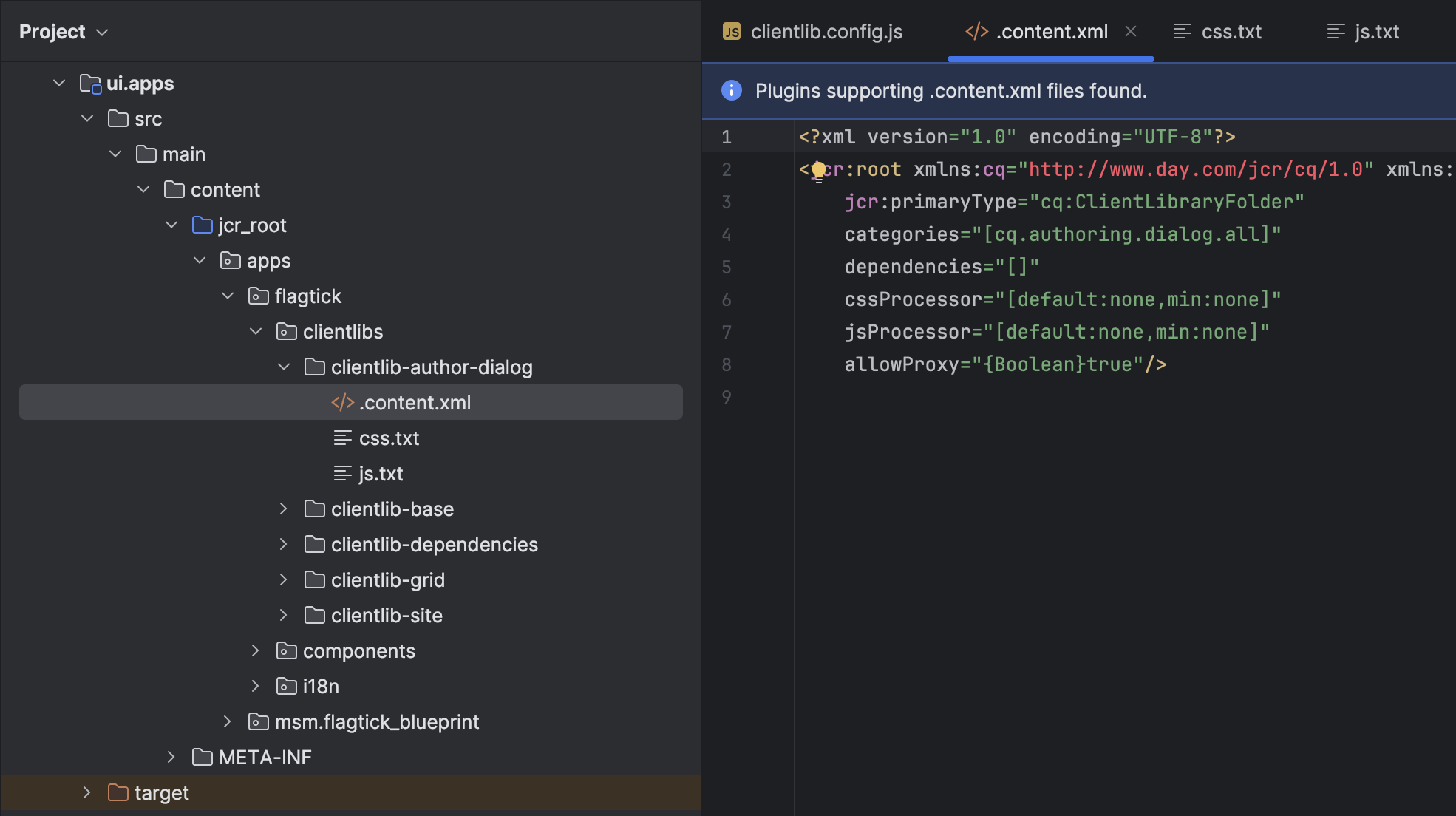
In typical AEM projects, authoring behavior like dialog field show or hide is implemented using dedicated client library located under ui.apps/src/main/content/jcr_root/apps/<project>/clientlibs/clientlib-author-dialog.
ui.apps
└── src
    └── main
        └── content
            └── jcr_root
                └── apps
                    └── flagtick
                        └── clientlibs
                            └── clientlib-author-dialog
                                ├── js
                                │   └── checkboxshowhide.js
                                ├── .content.xml
└── js.txtClient library loading in AEM is handled in
.content.xml, with categories property controlling script application.
When behavior should apply only to specific component dialog, category in .content.xml should change from cq.authoring.dialog.all to cq.authoring.dialog.<componentName>.
ui.apps
└── src
    └── main
        └── content
            └── jcr_root
                └── apps
                    └── flagtick
                        ├── clientlibs
                        │   ├── clientlib-author
                        │   ├── clientlib-base
                        │   ├── clientlib-dependencies
                        │   ├── clientlib-grid
                        │   └── clientlib-site
                        └── components
                            ├── ...
                            └── helloworld
                                ├── _cq_dialog
                                ├── clientlib-author-dialog
                                │   ├── js
                                │   │   └── mycustom.js
                                │   ├── .content.xml
                                │   └── js.txt
                                ├── .content.xml
└── helloworld.htmlFor authoring customization beyond dialogs, logic should move into clientlib-author, which loads across entire AEM Author interface.
//clientlib.config.js
{
  ...libsBaseConfig,
  name: 'clientlib-author',
  categories: ['flagtick.author'],
  dependencies: [],
  assets: {
    css: {
      cwd: 'clientlib-author',
      files: ['**/*.css'],
      flatten: false
    },
  }
},Feature-based or lazy-loaded JavaScript can be separated into dedicated client library by defining new entry in clientlib.config.js, such as clientlib-dynamic-modules.
//clientlib.config.js
{
  ...libsBaseConfig,
  name: 'clientlib-dynamic-modules',
  categories: ['flagtick.site.dynamic-modules'],
  dependencies: [],
  assets: {
    resources: [
      "clientlib-dynamic-modules/resources/*.js"
    ]
  },
}Integrating Client Libraries into Webpack for Local AEM Development
During local frontend development, AEM client libraries are integrated into the Webpack workflow using HtmlWebpackPlugin. This setup allows frontend development and testing to happen outside AEM, while still matching how assets are loaded in production.
Instead of letting AEM render the page, Webpack manages static/index.html. HtmlWebpackPlugin automatically injects compiled CSS and JavaScript, mirroring how AEM loads assets from cq:clientLibraryFolder.
This approach provides several benefits during development:
- Enable hot reloading for faster frontend iteration
- Emulate AEM component structure in standalone development mode
- Automatically inject compiled JavaScript and CSS bundles
//webpack.dev.js
plugins: [
    new HtmlWebpackPlugin({
        template: path.resolve(__dirname, SOURCE_ROOT + '/static/index.html'),
        filename: 'index.html',
        chunks: ['site', 'author']
    }),
    new HtmlWebpackPlugin({
        template: path.resolve(__dirname, SOURCE_ROOT + '/static/login.html'),
        filename: 'login.html',
        chunks: ['site', 'author']
    }),
    new HtmlWebpackPlugin({
        template: path.resolve(__dirname, SOURCE_ROOT + '/static/register.html'),
        filename: 'register.html',
        chunks: ['site', 'author']
    }),
    new HtmlWebpackPlugin({
        template: path.resolve(__dirname, SOURCE_ROOT + '/static/validate.html'),
        filename: 'validate.html',
        chunks: ['site', 'author']
    })
],Multiple HTML pages are generated through HtmlWebpackPlugin configuration in webpack.dev.js, where each template defines which Webpack chunks are injected.
Chunks such as site and author originate from Webpack build output in dist and map directly to AEM client libraries like clientlib-site and clientlib-author.
Once chunk mapping is defined in webpack.dev.js, Webpack automatically compiles assets and injects correct client libraries into each HTML entry point.
"scripts": {
  "dev": "webpack --mode development --color --env dev --config webpack/webpack.dev.js && clientlib --verbose",
  "prod": "webpack --mode production --color --env prod --config webpack/webpack.prod.js && clientlib --verbose",
  "clientlibs": "clientlib --verbose",
  "start": "webpack-dev-server --open --config webpack/webpack.dev.js",
  "sync": "aemsync -d -p ../ui.apps/src/main/content",
  "analyzeBundle": "webpack-bundle-analyzer --port 4200 ./dist/stats.json",
  "chokidar": "chokidar -c \"clientlib\" ./dist",
  "aemsyncro": "aemsync -w ../ui.apps/src/main/content",
  "watch": "npm-run-all --parallel start chokidar aemsyncro"
},Build behavior is standardized through npm scripts defined in package.json, covering development, production, and AEM synchronization.
With Webpack build scripts configured, style processing is handled by PostCSS through rules defined in postcss.config.js.
//postcss.config.js
const postCssSCSS = require('postcss-scss');
const path = require('path');

const paths = {
    components: path.resolve(__dirname, '../src/core/components/'),
    icons: path.resolve(__dirname, '../src/core/resources/icons/'),
    modules: path.resolve(__dirname, '../node_modules/'),
};
...For consistent path definitions across tools, AEM front-end projects use config.json file. This file is shared by Webpack, PostCSS, and AEM clientlib generator and defines common source and output paths.
With shared paths defined in config.json, the relationship between frontend source code, generated assets, and deployed AEM client libraries becomes explicit.
- Source structure:
/src/core/or/src/author/ - Generated assets:
/dist/clientlib-site/or/dist/clientlib-author/ - AEM clientlibs (deployed):
/apps/flagtick/clientlibs/→/etc.clientlibs/flagtick/clientlibs/
Once paths are resolved in config.json, Webpack output from dist is copied into AEM client library locations under /etc.clientlibs.
<link rel="stylesheet" href="/etc.clientlibs/flagtick/clientlibs/clientlib-base.css" type="text/css">
<script type="text/javascript" src="/etc.clientlibs/flagtick/clientlibs/clientlib-dependencies.js"></script>
<link rel="stylesheet" href="/etc.clientlibs/flagtick/clientlibs/clientlib-dependencies.css" type="text/css">Asset processing such as fonts and images is handled in ui.frontend, while ui.apps stores only compiled client libraries.
Build verification relies on stats.json, which records how Webpack bundles assets and maps them into each client library.
// main.scss
@font-face {
font-family: SarabunRegular;
src: url('../resources/fonts/Sarabun-Regular.ttf');
}
// stats.json
{
"type": "asset",
"name": "clientlib-site/fonts/Sarabun-Regular.ttf",
"size": 83080,
"emitted": true,
"comparedForEmit": false,
"cached": false,
"info": {
"copied": true,
"sourceFilename": "src/core/scripts/resources/fonts/Sarabun-Regular.ttf",
"size": 83080
},
"chunkNames": [],
"chunkIdHints": [],
"auxiliaryChunkNames": [],
"auxiliaryChunkIdHints": [],
"related": {},
"chunks": [],
"auxiliaryChunks": [],
"isOverSizeLimit": false
},With asset emission confirmed in stats.json, next step involves running npm start to validate asset delivery through AEM proxy during local development.
npm startWhen npm start runs, Webpack dev server serves static/index.html via HtmlWebpackPlugin and injects compiled client library assets.
<head>
<meta charset="UTF-8"/>
<title>Flagtick</title>
<meta name="template" content="page-content"/>
<meta name="viewport" content="width=device-width, initial-scale=1"/>
<link rel="stylesheet" href="/etc.clientlibs/flagtick/clientlibs/clientlib-base.css" type="text/css">
<script type="text/javascript" src="/etc.clientlibs/flagtick/clientlibs/clientlib-dependencies.js"></script>
<link rel="stylesheet" href="/etc.clientlibs/flagtick/clientlibs/clientlib-dependencies.css" type="text/css">
</head>After index.html loads in browser, injected bundles from clientlib-site and clientlib-author can be inspected directly in DOM.
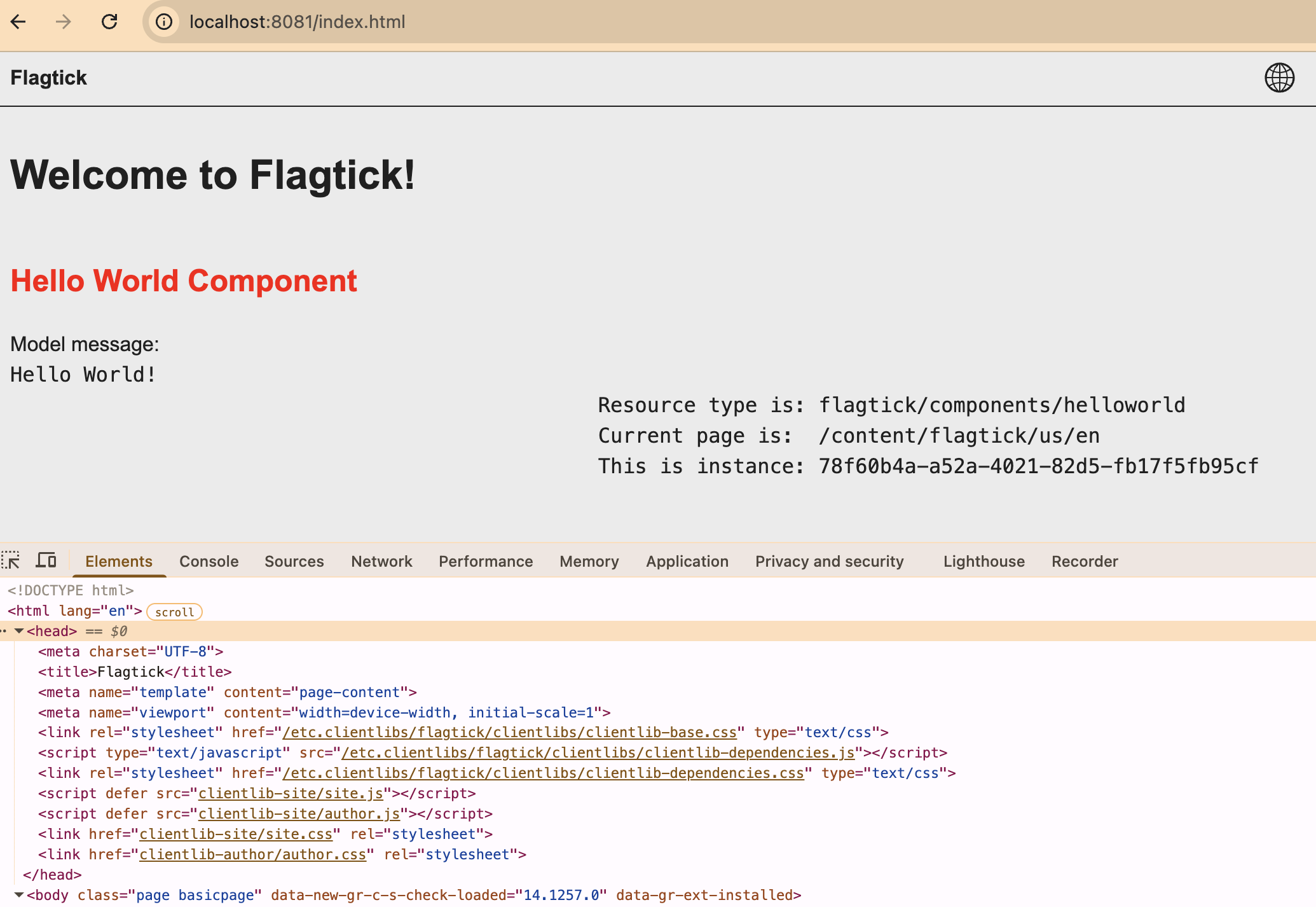
To understand how this output is generated, Webpack behavior during npm start execution needs review. During this process, Webpack performs following actions:
- Copies assets under
src/core/resources(fonts, images, etc.) into final build output. - Records asset output and source mappings in
stats.json, which AEM clientlibs rely on for path resolution. - Serves assets from locations expected by AEM when requests are proxied through
/etc.clientlibsduring local development or dispatcher testing.
<ul class="cmp-navigation__group">
    <li class="cmp-navigation__item cmp-navigation__item--level-0 cmp-navigation__item--active">
        <a href="/content/flagtick/us/en.html" title="Flagtick" aria-current="page" class="cmp-navigation__item-link">Flagtick</a>
        <img src="/clientlib-site/images/logo.png" alt="logo"/>
    </li>
</ul>This mapping ensures assets like images and fonts resolve correctly when HTML is rendered through AEM.
Wrapping up
Local AEM front-end build workflow has now been validated. Front-end assets are bundled in ui.frontend, mapped into /etc.clientlibs, and served through AEM proxy in same way as Cloud Manager environments.
Key points confirmed in this process include:
- Readiness of front-end output for AEM authoring in
ui.apps - Validation of local Webpack build behavior
- Bundling of fonts, styles, and scripts in
ui.frontend - Mapping of build output into
/etc.clientlibs - Verification of asset emission using
stats.json - Inspection of injected client libraries in browser DOM
- Confirmation of asset resolution through AEM proxy
- Alignment of local build behavior with production expectations
What’s next
Next guide shifts focus from front-end asset delivery to AEM page structure. Static markup from index.html will be transformed into fully editable AEM pages.
Topics covered include:
- Mapping static HTML layouts into AEM templates and components
- Configuring template types, page policies, and allowed components
- Extending core page components with custom header and footer client libraries
- Introducing Experience Fragments for reusable design sections
By the end of the next section, static markup generated in ui.frontend connects directly with editable templates inside AEM, bridging front-end development and authoring workflows in real-world projects.
👉 Continue reading: Building Editable Pages in AEM from HTML Mockups