Integrating ID.me SAML 2.0 with AEM as a Cloud Service
This guide walks through integrating ID.me as a SAML 2.0 Identity Provider (IdP) with Adobe Experience Manager as a Cloud Service (AEMaaCS), using a production-grade, Service Provider–initiated flow.
By the end of this guide, AEM will be able to:
- Redirect unauthenticated users to ID.me
- Receive and validate SAMLResponse messages on the ACS endpoint
- Establish authenticated AEM user sessions
- Return users to the originally requested protected page
Rather than focusing on SAML theory, this article follows the full, practical integration path required to make SAML work reliably in AEM Cloud environments.
You will work through:
- Configuring AEM as a SAML Service Provider
- Establishing certificate trust and optional assertion encryption
- Allowing SAML authentication endpoints through Dispatcher and proxies
- Validating the complete SP-initiated login flow for protected content
Each section builds on the previous one, so by the end you will have a working, debuggable SAML integration that behaves consistently across local SDK and AEM Cloud environments.
If you need field-by-field reference for every SAML handler property, see Adobe’s official documentation:
🔗 AEM as a Cloud Service – SAML 2.0 Authentication Handler
Configure AEM as a SAML Service Provider
This step defines AEM as the SAML Service Provider and establishes how AEM initiates and receives SAML authentication from ID.me.
Create a named SAML handler in your project:
ui.config/src/main/content/jcr_root/apps/<project>/osgiconfig/config.publish.dev/
└── com.adobe.granite.auth.saml.SamlAuthenticationHandler~idme.jsonUse run mode–specific folders (for example, config.publish.sdk, config.publish.dev) and verify active run modes via /system/console/status-slingsettings.
Run Modes = [s7connect, crx3, publish, sdk, live, crx3tar]Expected result
- Active run modes include the expected publish run modes (for example: publish, sdk, dev).
- The SAML handler configuration is loaded automatically
With run modes confirmed, define the minimal SAML handler configuration required for AEM to initiate authentication and receive assertions from ID.me.
{
  "idpIdentifier": "idme",
  "defaultRedirectUrl": "/",
  "path": ["/content/flagtick"],
  "idpUrl": "https://api.idmelabs.com/saml/SingleSignOnService",
  "logoutUrl": "https://api.idmelabs.com/saml/SingleLogoutService",
  "idpCertAlias": "$[env:SAML_IDP_CERT_ALIAS]",
  "serviceProviderEntityId": "$[env:SAML_SP_ENTITY_ID]",
  "assertionConsumerServiceURL": "$[env:SAML_ACS_URL]",
  "userIDAttribute": "uuid",
  "nameIdFormat": "urn:oasis:names:tc:SAML:1.1:nameid-format:unspecified",
  "handleLogout": true,
  "useEncryption": "$[env:SAML_USE_ENCRYPTION;default=false]",
  "spPrivateKeyAlias": "aem-saml-encryption",
  "keyStorePassword": "$[secret:SAML_AEM_KEYSTORE_PASSWORD]",
  "service.ranking": 5002
}Notes:
- Protect only the site root. Avoid
/, which locks the AEM UI. - ACS must be inside the protected path (…/saml_login).
- Using $[env:…] allows domain and endpoint changes without redeploying.
Certificate Trust & Encryption for AEM and ID.me
At this stage, you must decide whether AEM will only validate signed SAML assertions or also decrypt encrypted assertions sent by ID.me.
Certificate handling depends on one setting:
"useEncryption": false | trueIf useEncryption is set to false, AEM validates the digital signature on the SAML assertion but does not attempt to decrypt it.
- No SP private key is required
- No authentication-service keystore setup
- Recommended for ID.me Sandbox, where assertions are signed but not encrypted
Open the IDmeSandbox_provider_metadata.xml file you received from the ID.me team, then copy the certificate inside
<ds:X509Certificate>…</ds:X509Certificate> and save it as idme-public.crt.
<ds:X509Certificate>
MIIG8TCCBd...IQ==
</ds:X509Certificate>Convert into:
-----BEGIN CERTIFICATE-----
MIIG8TCCBd...IQ==
-----END CERTIFICATE-----Save as:
idme-public.crtThis certificate becomes the trust anchor AEM uses to verify signatures on SAML assertions issued by ID.me.
Open Tools → Security → Global TrustStore on the Author instance.
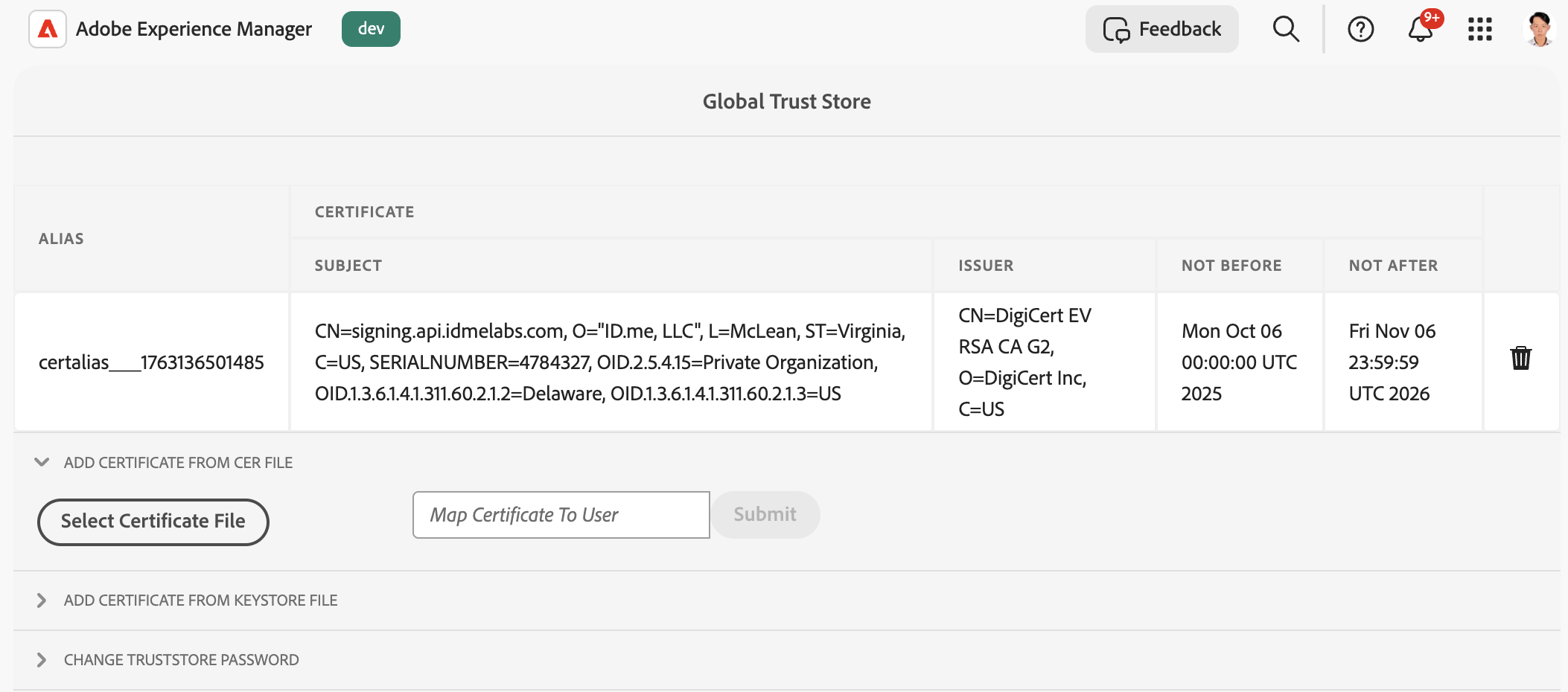
Upload the same certificate to the AEM Cloud Global TrustStore on the Author environment. (AEM as a Cloud Service allows certificate uploads on Author only; changes are synchronized to Publish.)
"idpCertAlias": "certalias___1763136501485"This alias must be referenced in the SAML Authentication Handler configuration so AEM can validate signed SAML assertions from ID.me during login.
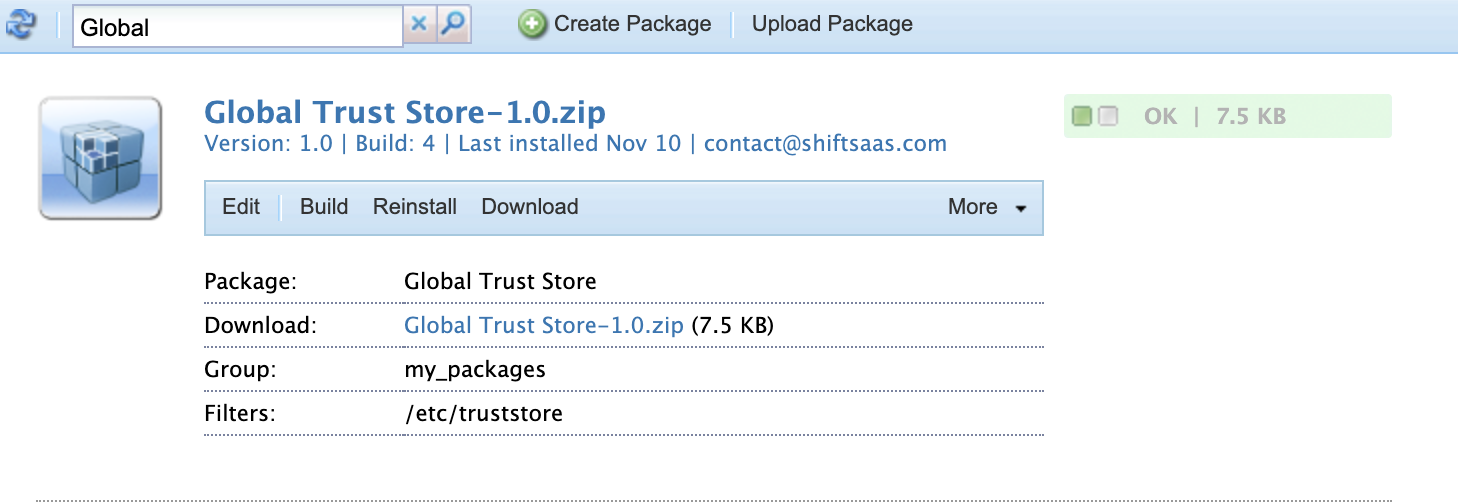
Next, package the Global TrustStore so it can be replicated to Publish.
Create a package with the filter:
/etc/truststoreBuild it, then select More → Replicate to push the TrustStore to your Publish instance.
⚠️ AEM as a Cloud Service limitation
Self-signed certificates are not supported in AEM as a Cloud Service.
When encrypted SAML assertions are required in AEM Cloud, the Service Provider (SP) certificate must:
- Match the real HTTPS domain (for example:
flagtick.com) - Be issued by a trusted Certificate Authority (CA)
The OpenSSL steps below are for local AEM SDK testing only and must not be used for AEM Cloud environments.
When useEncryption is set to true, upload the Service Provider (SP) private key to the authentication-service keystore on AEM Author so AEM can decrypt encrypted SAML assertions.
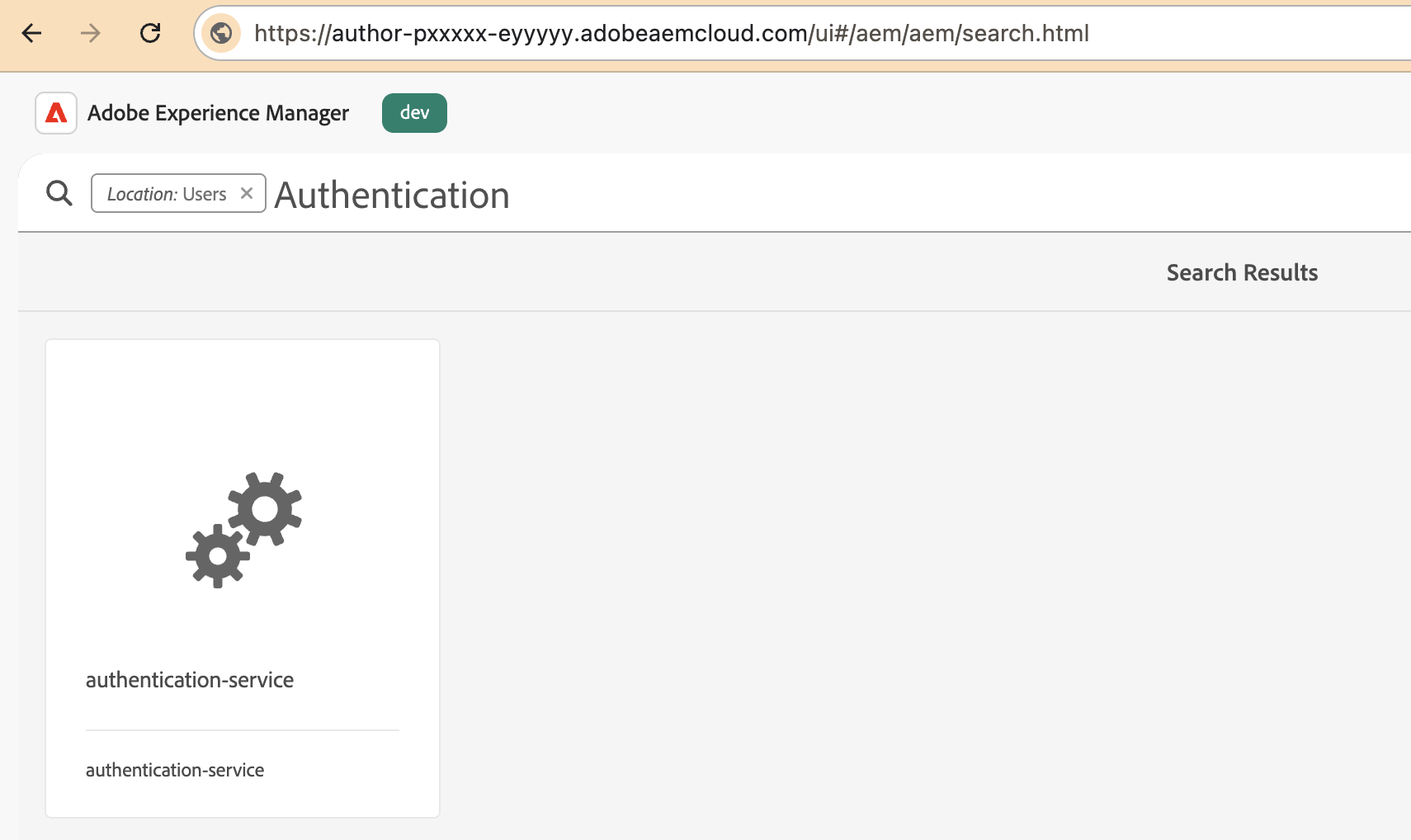
When testing encrypted assertions locally, generate a Service Provider (SP) key pair that matches the HTTPS domain used by the AEM Publish instance.
For an AEM SDK running on HTTPS port 8443:
https://localhost:8443Use:
CN=localhostIf custom local domain is mapped via /etc/hosts, for example:
127.0.0.1 flagtick.localThen the certificate must instead use:
CN=flagtick.localFor local AEM SDK testing on HTTPS (localhost:8443), Adobe provides a ready-made localhost certificate package that is fully compatible with AEM keystores and the SSL Configuration Wizard.
The package includes:
- localhost.crt — public certificate
- localhostprivate.der — private key (PKCS#8 DER)
These files can be used directly without manual OpenSSL generation.
👉 Use the SSL Configuration Wizard (Adobe Experience League) Or download the ZIP directly: Adobe localhost certificate.zip
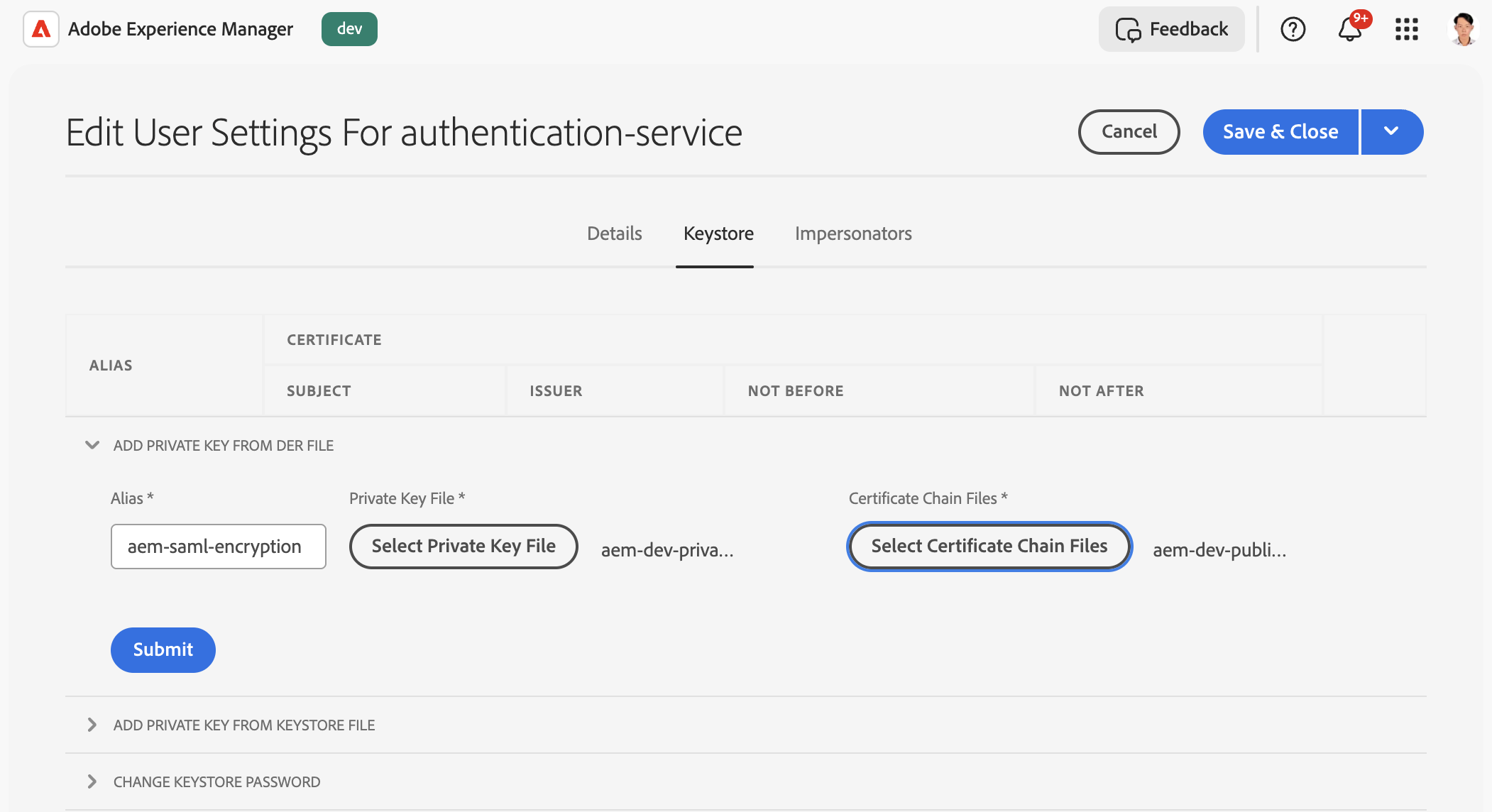
Upload the SP keypair to the authentication-service keystore using the alias you configured in the SAML handler. Select the PKCS#8 DER private key file and the matching certificate, then submit and save.
- Alias: aem-saml-encryption
- Private Key File → aem-local-private-pkcs8.der (private key, PKCS#8 DER)
- Certificate Chain Files → aem-local-public.crt (certificate)
Create a package for the authentication-service keystore, build it, and replicate it to Publish to make the keypair available.
- Create package
- Add filter:/home/users/system/…/authentication-service/keystore
- Build → Replicate
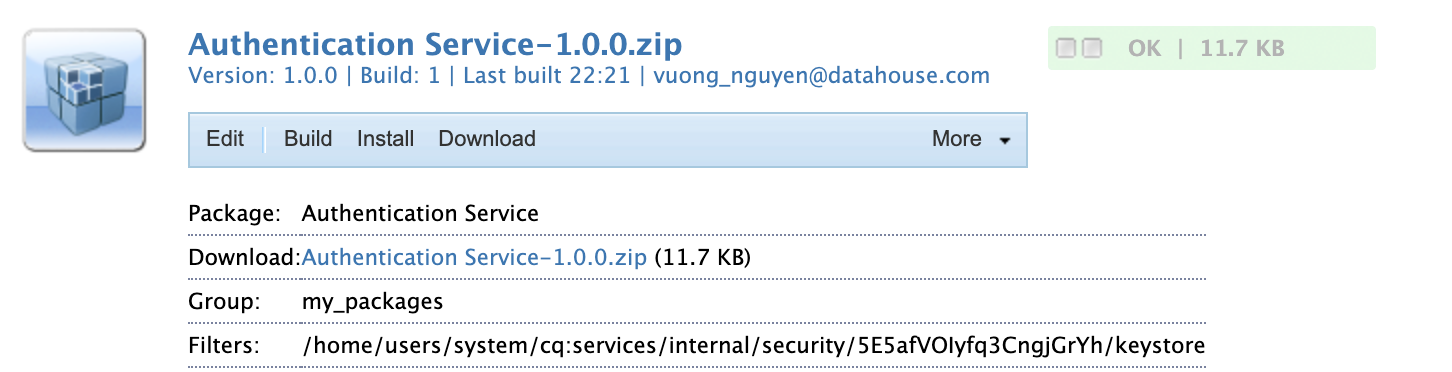
In your SAML OSGi configuration, define the encryption settings and reference the private key you uploaded to the authentication-service keystore:
"useEncryption": true,
"spPrivateKeyAlias": "aem-saml-encryption",
"keyStorePassword": "$[secret:SAML_AEM_KEYSTORE_PASSWORD]"Once certificates and keys are in place, AEM activates the SAML handler and generates Service Provider metadata for ID.me. This includes:
- SP Entity ID
- Assertion Consumer Service (ACS) URL
- NameID format
- AEM’s signing certificate
Below is example of the generated Service Provider values for local AEM SDK Publish instance running on HTTPS port 8443.
{
  "idpIdentifier": "idme",
  "path": ["/content/flagtick"],
  "idpUrl": "https://api.idmelabs.com/saml/SingleSignOnService",
  "logoutUrl": "https://api.idmelabs.com/saml/SingleLogoutService",
  "idpCertAlias": "certalias___1762941383878",
  "serviceProviderEntityId": "https://localhost:8443/sp",
  "assertionConsumerServiceURL": "https://localhost:8443/content/flagtick/saml_login",
  "userIDAttribute": "uuid",
  "nameIdFormat": "urn:oasis:names:tc:SAML:1.1:nameid-format:unspecified",
  "handleLogout": true,
  "useEncryption": "false",
  "spPrivateKeyAlias": "aem-saml-encryption",
  "keyStorePassword": "admin",
  "service.ranking": 5002
}Example (AEM Cloud):
"serviceProviderEntityId": "https://portaldev.adobeaemcloud.com/sp",
"assertionConsumerServiceURL": "https://portaldev.adobeaemcloud.com/content/flagtick/saml_login"To avoid repeating this configuration across environments, SAML properties should be externalized.
With the $[env:...] syntax in your OSGi JSON, AEM reads the correct values at runtime—such as the IdP URL, certificate alias, or SP Entity ID—from Cloud Manager.
Here is a simple example of dynamic SAML properties:
{
  "idpIdentifier": "$[env:SAML_IDP_IDENTIFIER;default=idme]",
  "path": ["/content/flagtick"],
  "idpUrl": "$[env:SAML_IDP_URL;default=https://api.idmelabs.com/saml/SingleSignOnService]",
  "logoutUrl": "$[env:SAML_IDP_LOGOUT_URL;default=https://api.idmelabs.com/saml/SingleLogoutService]",
  "idpCertAlias": "$[env:SAML_IDP_CERT_ALIAS;default=certalias___1762941383878]",
  "serviceProviderEntityId": "$[env:SAML_SP_ENTITY_ID;default=https://portaldev.adobeaemcloud.com/sp]",
  "assertionConsumerServiceURL": "$[env:SAML_ACS_URL;default=https://portaldev.adobeaemcloud.com/content/flagtick/saml_login]",
  "userIDAttribute": "uuid",
  "nameIdFormat": "urn:oasis:names:tc:SAML:1.1:nameid-format:unspecified",
  "handleLogout": true,
  "useEncryption": "$[env:SAML_USE_ENCRYPTION;default=false]",
  "spPrivateKeyAlias": "aem-saml-encryption",
  "keyStorePassword": "$[secret:SAML_AEM_KEYSTORE_PASSWORD]",
  "service.ranking": 5002
}With this approach:
- No code changes are needed when domain names or IdP endpoints differ between Dev/Stage/Prod.
- Secrets and certificates are safely managed through Cloud Manager.
- SAML stays consistent across all AEM Cloud environments with zero rebuild effort.
- Promotion pipelines become fully automated and environment-agnostic.
Allow SAML Endpoints Through Dispatcher
SAML requires the IdP to POST the SAMLResponse directly to AEM Publish without Dispatcher interference.
Dispatcher must not block, cache, rewrite, or redirect SAML authentication endpoints.
At this point, Dispatcher must allow the SAML flow to pass through without interference.
Open your filters.any file and drop these rules in:
# --- SAML 2.0 Authentication Endpoints ---
/0302 { /type "allow" /method "POST" /url "*/saml_login" }
/0303 { /type "allow" /method "GET"  /url "/system/sling/login" }
/0304 { /type "allow" /method "POST" /url "/system/sling/login" }
/0305 { /type "allow" /method "GET" /url "/libs/granite/security/currentuser.json" }If you have multiple ACS paths under different site roots, add each */saml_login variant or use a more specific pattern.
If you use rewrite.rules, ensure you ignore ACS paths — do not redirect/force HTTPS/strip query for /saml_login or /system/sling/login:
Example rewrite.rules entry (Apache mod_rewrite style used by Dispatcher):
# Do NOT rewrite or redirect ACS callbacks
RewriteRule ^/(content/.*/saml_login)$ - [L,NS]
RewriteRule ^/system/sling/login(/.*)?$ - [L,NS](Exact syntax depends on your setup — the goal: skip rewrites for these endpoints.)
Allows only POST requests from ID.me and ID.me Labs domains to reach the ACS endpoint.
// <run mode>/org.apache.sling.security.impl.ReferrerFilter.cfg.json
{
  "allow.empty": true,
  "allow.hosts": ["api.id.me", "api.idmelabs.com"],
  "allow.hosts.regexp": ["^(.+\\.)?id\\.me$", "^(.+\\.)?idmelabs\\.com$"],
  "filter.methods": ["POST"]
}With the Referrer Filter in place, the next step is allowing these same ID.me domains to make POST requests through CORS.
Here is the matching CORS configuration:
// <run mode>/com.adobe.granite.cors.impl.CORSPolicyImpl~saml.cfg.json
{
  "alloworigin": ["https://api.idmelabs.com","https://api.id.me"],
  "allowedpaths": [".*/saml_login"],
  "supportedmethods": ["POST"]
}SAML Authentication Flow & AEM ACS Validation
With configuration complete, validate the full SAML handshake end-to-end.
This section explains the exact sequence ID.me uses during authentication and how AEM handles the incoming SAML Response before redirecting users to their final destination.
Before integrating with AEM, you may optionally verify that your ID.me SAML application is configured correctly by calling the SSO URL directly. This only validates the ID.me side — it does not test AEM’s SP-initiated login.
https://api.idmelabs.com/saml/SingleSignOnService
  ?EntityID=<entity-id>
  &NameIDFormat=<nameid-policy>
  &Binding=urn:oasis:names:tc:SAML:2.0:bindings:HTTP-POST
  &AuthnContext=http://idmanagement.gov/ns/assurance/ial/2/aal/2
&op=<signin-or-signup>If the ID.me app configuration is correct, ID.me will display its authentication/consent screens. This test confirms ID.me behavior only; it does not involve AEM or validate SP-initiated authentication.
During a normal SAML authentication, ID.me performs the following steps:
The user is taken to:
https://api.idmelabs.com/en/consent/newOnce authenticated, ID.me transitions to:
https://api.idmelabs.com/en/respond/samlThe browser automatically performs form POST to your Assertion Consumer Service (ACS):
https://<your-site>/content/.../saml_loginThis sequence confirms the IdP will correctly POST a SAMLResponse to your ACS, but it still does not involve AEM generating or signing an AuthnRequest.
This POST contains:
RelayState(optional; used to restore the user’s requested page)SAMLResponse(Base64-encoded XML assertion)
When the browser POSTs to the ACS endpoint, AEM performs the following strict validations on the incoming SAMLResponse:
- Signature Verification — the assertion must be signed with the IdP certificate uploaded to your AEM TrustStore.
- Timestamp Validation — the
<Conditions>and<AuthnStatement>time windows must be current (AEM rejects expired assertions). - Audience & ACS Matching — the assertion must list your AEM SP Entity ID and ACS URL.
- StatusCode Check — the SAML Response must contain
urn:oasis:names:tc:SAML:2.0:status:Success.
AEM validates the Status element first. If the value is not Success, AEM stops right here and refuses the login.
So when you see this block, you are just making sure the IdP didn’t report an error.
<samlp:Status>
    <samlp:StatusCode Value="urn:oasis:names:tc:SAML:2.0:status:Success" />
</samlp:Status>Incorrect XML attributes will cause validation failures, even when copied directly from documentation.
This validation block ensures the IdP is reporting a successful authentication before AEM processes attributes or creates the user.
Important
The direct ID.me SSO URL is not a valid way to test AEM’s SAML flow, because it bypasses AEM entirely. AEM must generate and sign its own AuthnRequest using the configured keystore. Only an SP-initiated flow (triggered from AEM) validates the full round-trip login sequence.
The next section shows how to correctly trigger AEM’s SP-initiated authentication using /system/sling/login, which ensures AEM generates the signed AuthnRequest and completes the full SAML handshake with ID.me.
Validating SP-Initiated SAML Login for Protected Pages
With the deployment completed and the pipeline passing, the environment is ready for you to begin testing the SAML login flow.
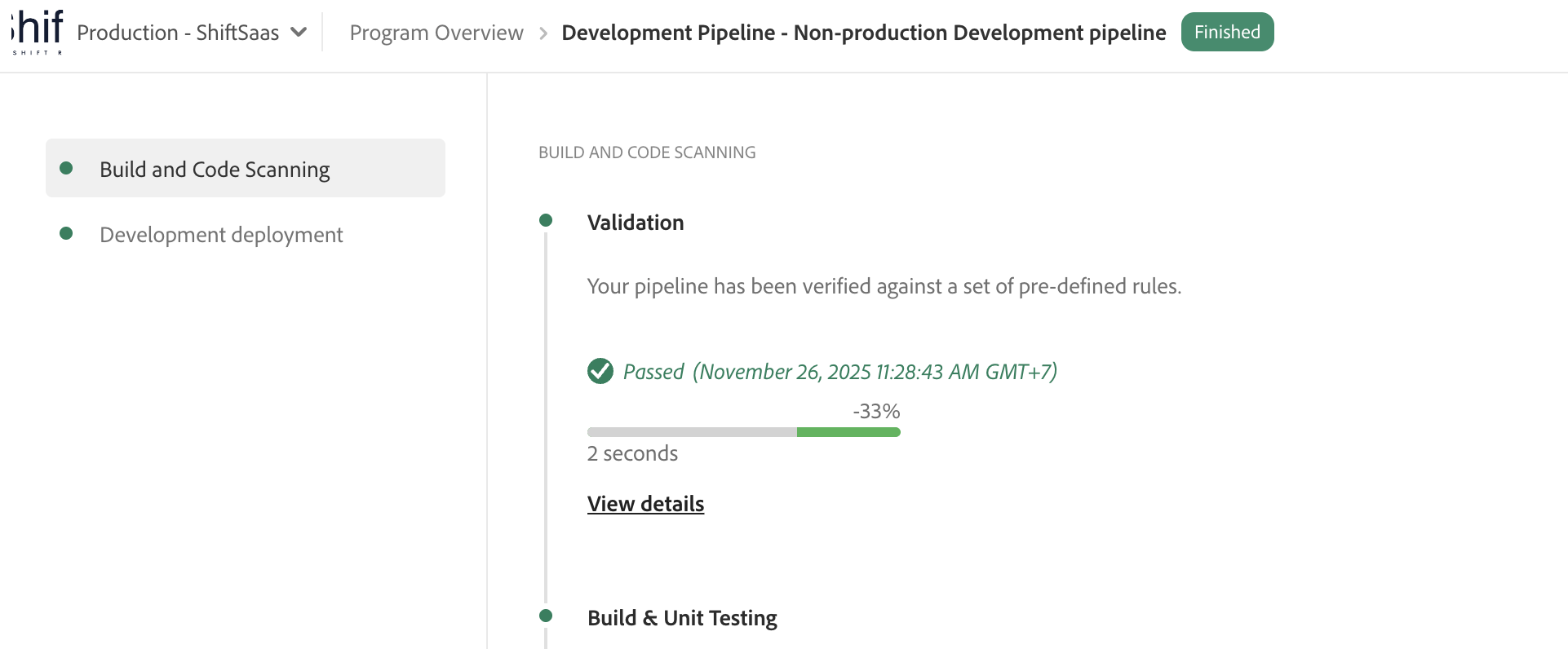
Next, open the Developer Console for the target environment to review the active OSGi configurations.
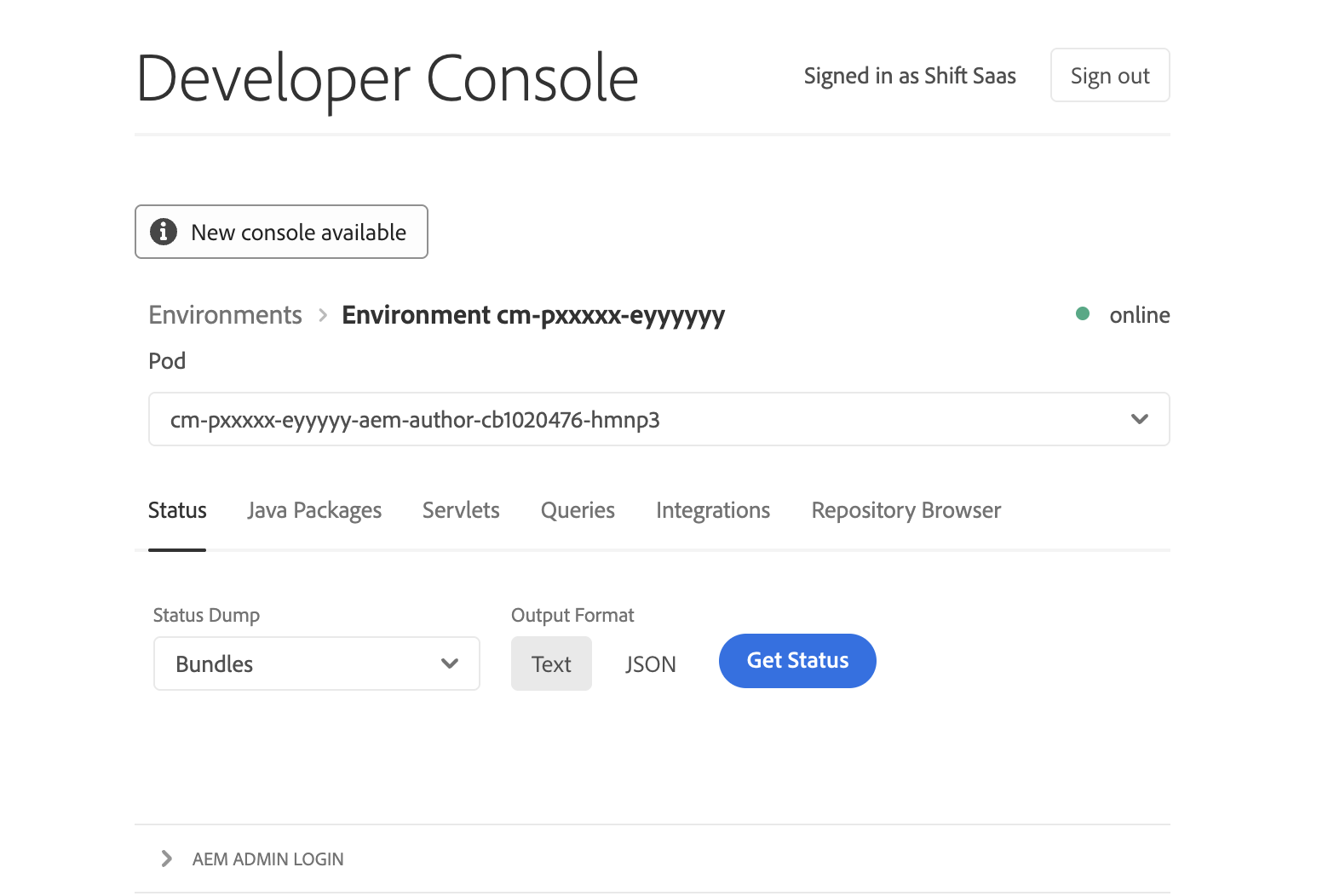
With the deployment complete, you can begin testing the SAML login flow.
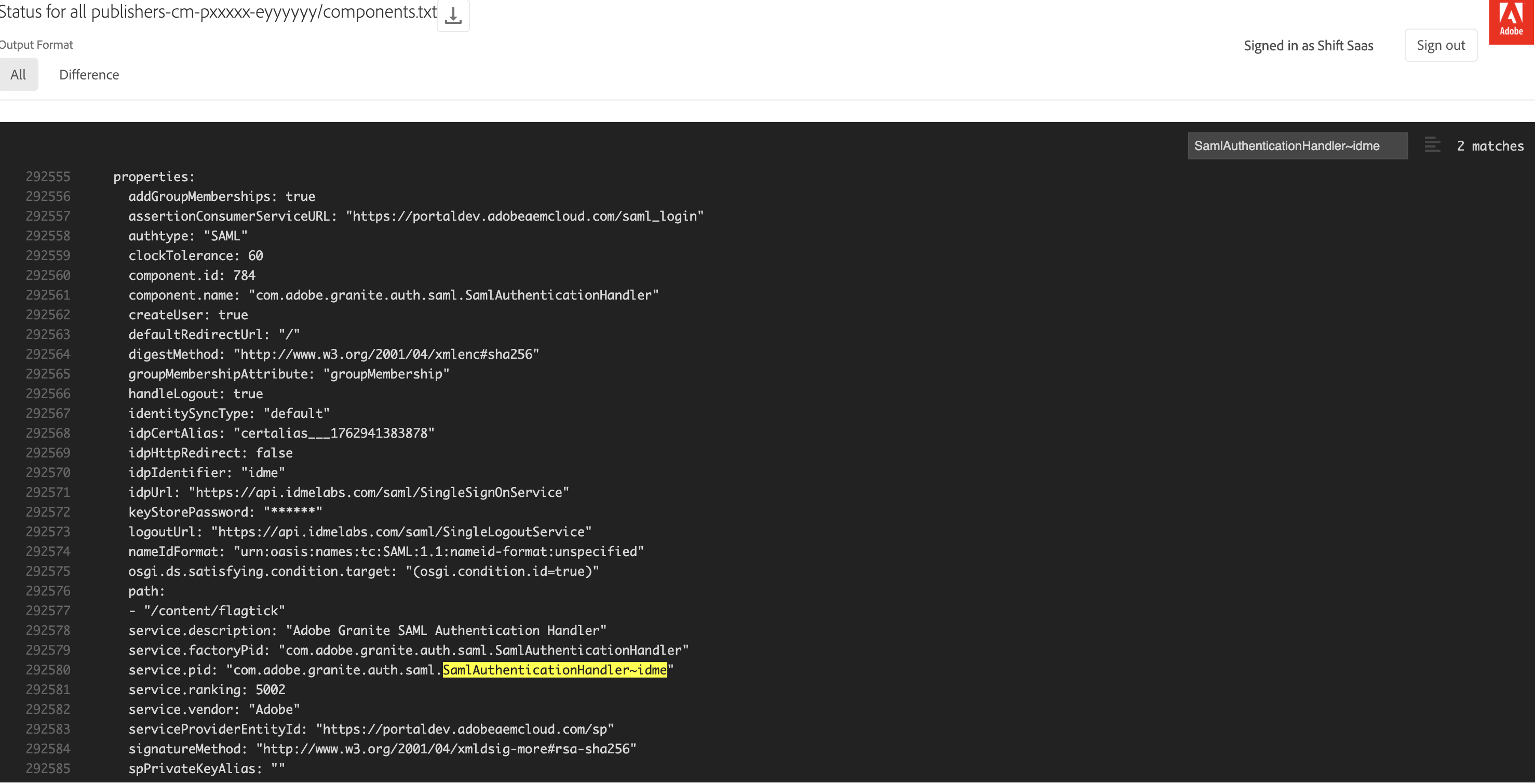
First, open the environment’s Developer Console and confirm that the correct SAML Authentication Handler is active:
com.adobe.granite.auth.saml.SamlAuthenticationHandler~idmeOpen the PID and verify that the ACS URL, Entity ID, IdP URL, and certificate alias match the ID.me settings. Any mismatch will stop the AuthnRequest.
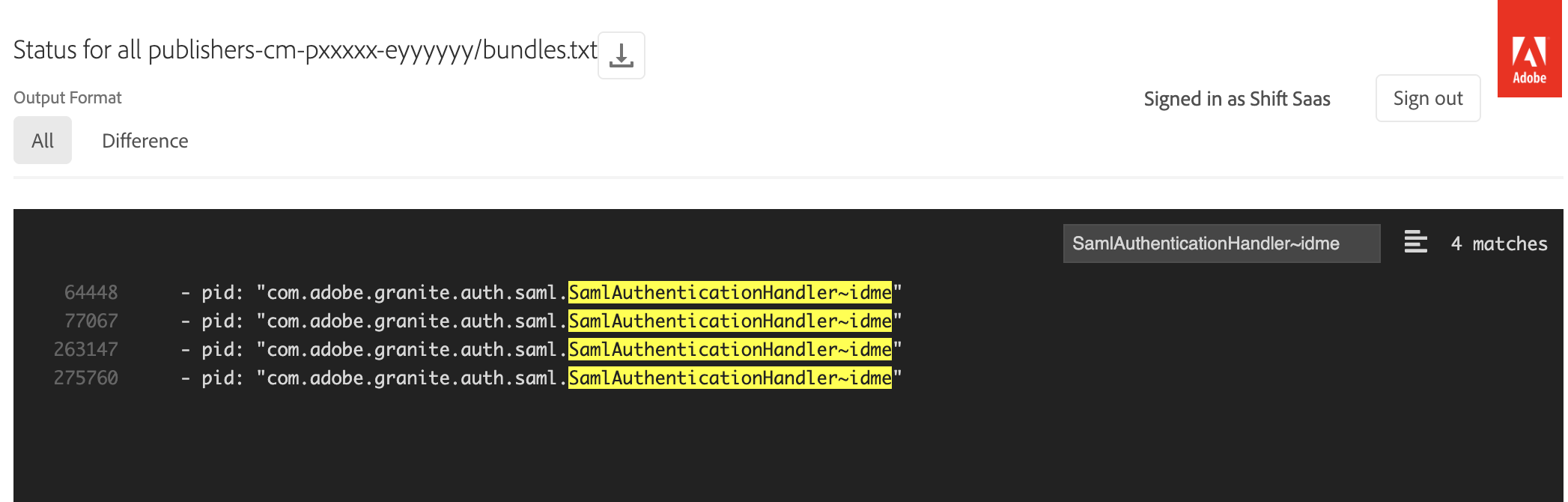
Open the SAML handler PID and confirm the ACS URL, Entity ID, IdP URL, and certificate alias match the ID.me configuration. Any mismatch will stop the AuthnRequest.
To trigger full SP-initiated SAML login, use AEM system login endpoint:
/system/sling/loginRequired parameters:
resource— protected path defined in SAML handlersaml_request_path— page to return to after login
Example (AEM Cloud Dev):
https://portaldev.adobeaemcloud.com/system/sling/login?resource=/content/flagtick&saml_request_path=/content/flagtick/en/secure/page.htmlExample (local SDK):
https://publish.local:8443/system/sling/login?resource=/content/flagtick&saml_request_path=/content/flagtick/en/secure/page.htmlOpening this URL forces AEM to generate signed AuthnRequest, confirming:
- SAML handler is active
- AEM can sign requests
- Keystore is valid
<samlp:AuthnRequest
    AssertionConsumerServiceURL="https://<domain>/saml_login"
    Destination="https://api.idmelabs.com/saml/SingleSignOnService"
    ProtocolBinding="urn:oasis:names:tc:SAML:2.0:bindings:HTTP-POST">
  <saml:Issuer>https://<domain>/sp</saml:Issuer>
  <Signature>...</Signature>
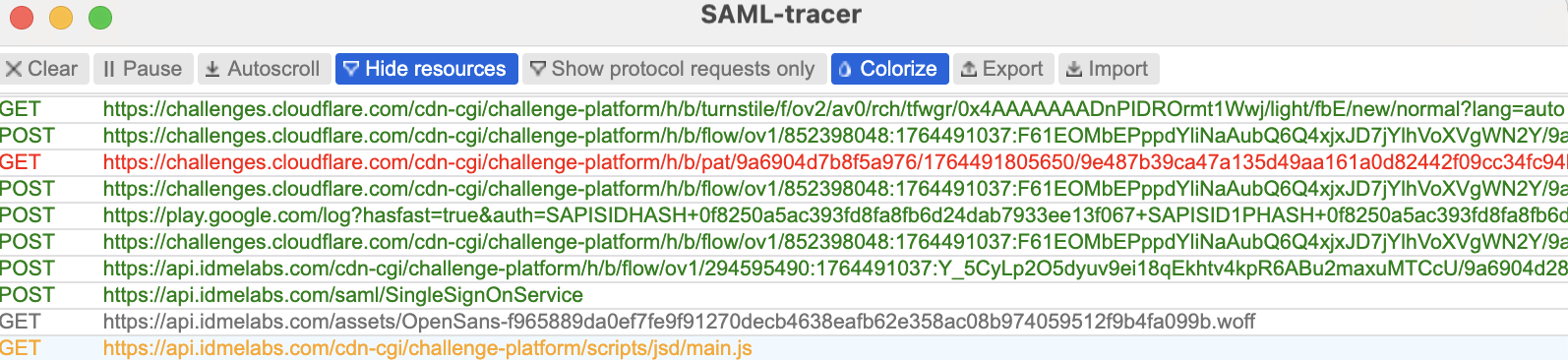
</samlp:AuthnRequest>You can confirm this flow using SAML-Tracer. The POST to the ACS URL and the subsequent redirects will appear as shown below:
ACS endpoint (e.g., /saml_login) must be registered with IdP. No servlet implementation required.
AEM SAML Authentication Handler receives POST, validates SAMLResponse, and creates user session automatically.
If additional customization is required, AEM provides an optional extension point:
org.apache.sling.auth.core.spi.AuthenticationInfoPostProcessorPost-processor runs immediately after successful SAML authentication and allows reading or modifying attributes before session creation.
If no custom work is required, this step can be skipped.
Example implementation:
package com.example.core.saml;

import org.apache.sling.auth.core.spi.AuthenticationInfo;
import org.apache.sling.auth.core.spi.AuthenticationInfoPostProcessor;
import org.osgi.service.component.annotations.Component;
import org.slf4j.Logger;
import org.slf4j.LoggerFactory;

@Component(
        service = AuthenticationInfoPostProcessor.class,
        immediate = true
)
public class ExampleSamlPostProcessor implements AuthenticationInfoPostProcessor {

    private static final Logger log = LoggerFactory.getLogger(ExampleSamlPostProcessor.class);

    @Override
    public void postProcess(AuthenticationInfo info,
                            javax.servlet.http.HttpServletRequest request,
                            javax.servlet.http.HttpServletResponse response) {

        log.info("SAML authentication completed. Attributes: {}", info.getAttributes());
        // Add custom logic here if needed
    }
}This keeps SAML flow managed by AEM while still allowing optional customization when project requirements demand it.
Wrapping Up
You have completed a full SAML 2.0 integration between AEM and ID.me.
AEM is now configured to:
- Act as a SAML Service Provider
- Validate signed (and optional encrypted) SAML assertions
- Accept SAML authentication traffic through Dispatcher and proxies
- Complete SP-initiated login flows for protected pages
One limitation remains on AEM as a Cloud Service.
AEMaaCS does not currently support configurable AuthnContextClassRef values, which can conflict with ID.me’s identity assurance requirements (IAL/AAL). As a result, SAML authentication works end to end but may not fully align with ID.me’s assurance model.
What’s Next
Because AuthnContext negotiation is limited on AEMaaCS and SAML login flows can break when external login or registration takes longer than cookie lifetimes, the next logical step is to explore OpenID Connect (OIDC). ID.me fully supports OIDC, which offers more flexible handling of scopes, claims, session duration, and assurance levels without the timing pitfalls of long SAML round trips.
In the next article, you will learn how to implement OIDC with AEM as a Cloud Service:
- Setting up an OIDC application in ID.me
- Configuring AEM’s IMS/OIDC support for Cloud Service
- Mapping OIDC claims to AEM user profiles
- Handling redirects, sessions, and protected content
- Comparing SAML and OIDC for identity assurance (IAL/AAL)
This approach reduces session timeout issues caused by lengthy login/registration redirects, keeps your integration maintainable and future-ready, and aligns with modern identity provider standards.
Read more at: Implementing ID.me OpenID Connect (OIDC) with AEM as a Cloud Service