AEM Is Not an HTML Renderer — Here’s How Pages Actually Work
Most AEM projects don’t struggle because of bad code.
They struggle because pages are modeled like HTML — not like AEM.
And once that mistake is made, everything becomes harder:
- HTML doesn’t map cleanly into components
- Templates feel “magical” and hard to control
- Content breaks when reused
In AEM, HTML is just the output — not the source.
The real source of truth lives in structure, templates, and content — not markup.
If you’ve already seen how frontend assets are built and mapped into AEM, this is the missing piece that explains why that flow works the way it does.
And if not, you can start there:
→ Complete AEM Front-End Development Workflow: Webpack, Clientlibs, and Local Dev Setup
This article breaks down how AEM actually builds a page — so you can finally understand why HTML fails, and how to model pages the way AEM expects.
From Static HTML to AEM Rendering — How Pages Are Built
In AEM projects generated from the Maven archetype, development starts with a static page served by ui.frontend (e.g., http://localhost:8081/index.html) as a baseline for layout, styling, and front-end interactions.
Example (static HTML structure):
<body class="page basicpage">
  <div class="root container responsivegrid">
    <div class="cmp-container">

      <header class="experiencefragment">
        <div class="cmp-experiencefragment">
          <div class="cmp-container">
            <div class="aem-Grid aem-Grid--12 aem-Grid--default--12">
              <!-- Header components go here -->
            </div>
          </div>
        </div>
      </header>

      <main class="container responsivegrid">
        <div class="cmp-container">
          <div class="aem-Grid aem-Grid--12 aem-Grid--default--12">

            <div class="title aem-GridColumn aem-GridColumn--default--12">
              <div class="cmp-title">
                <h1 class="cmp-title__text">Page Title</h1>
              </div>
            </div>

            <div class="container responsivegrid aem-GridColumn aem-GridColumn--default--12">
              <div class="cmp-container">
                <div class="aem-Grid aem-Grid--12 aem-Grid--default--12">
                  <!-- Inner components go here -->
                </div>
              </div>
            </div>

          </div>
        </div>
      </main>

      <footer class="experiencefragment">
        <div class="cmp-experiencefragment">
          <div class="cmp-container">
            <div class="aem-Grid aem-Grid--12 aem-Grid--default--12">
              <!-- Footer components go here -->
            </div>
          </div>
        </div>
      </footer>

    </div>
  </div>
</body>Based on the static HTML, map each part to a Core Component and evaluate whether it can be reused. Only add custom HTL (
.html) or build a new component when needed to complete the page.
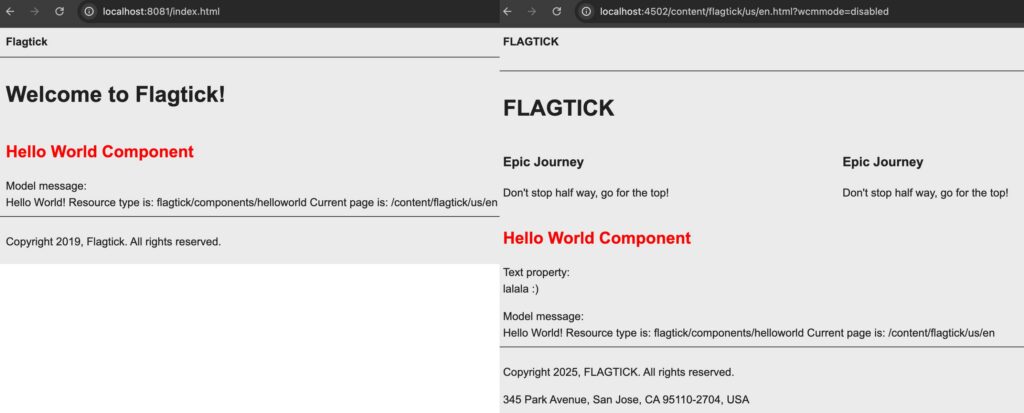
This difference can be visualized in the following diagram:
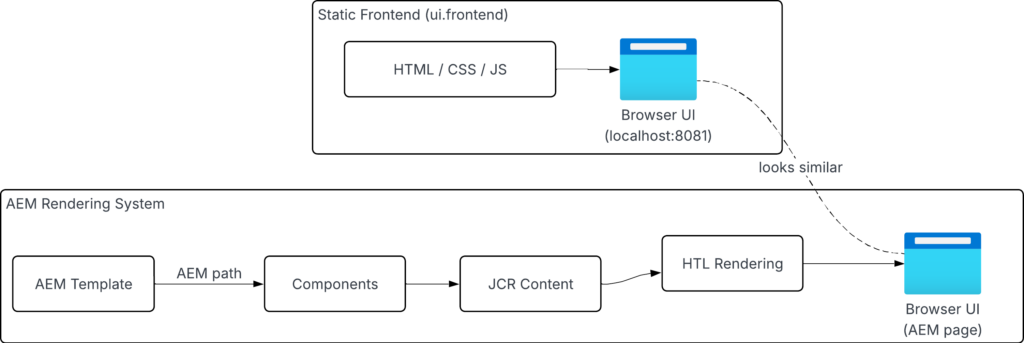
While the frontend delivers pre-built HTML, AEM builds pages at runtime by combining:
- Templates (structure)
- Components (presentation logic)
- JCR content (data)
These are not separate layers—they work together to produce the final page. At its core, an AEM page is not HTML—it is a composition of structure, content, and runtime rendering: templates define layout, JCR stores content, and components render the final output.
At the center of this system is the component:
Component
- HTL (view)
- Sling Model (logic)
- JCR (content)In the JCR, a page is stored as a hierarchical tree of components.
For example, a page like /en is stored as:
/content/<site>/en/.content.xmlRendering is defined directly on the JCR node via properties such as cq:template:
cq:template="/conf/${appId}/settings/wcm/templates/page-content"Templates build on template types and define structure and component mapping via sling:resourceType.
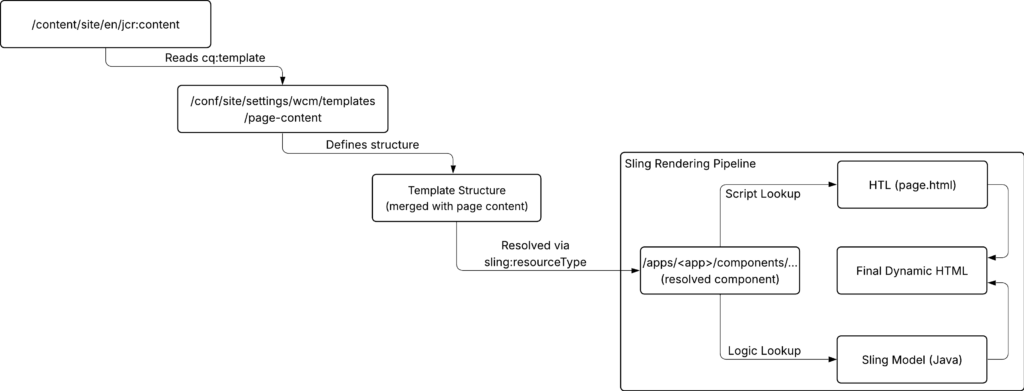
In the Maven archetype, you can find:
- the structure definition at
/conf/${appId}/settings/wcm/template-types/page/structure/.content.xml - and the template at
/conf/${appId}/settings/wcm/templates/page-content
Content from:
template-types/page/structure/.content.xmlis copied into:
/conf/${appId}/settings/wcm/templates/page-contentWhen a page is created, it stores:
cq:template="/conf/${appId}/settings/wcm/templates/page-content"This value determines how the page is rendered.
Reference: AEM Archetype Template-Type Structure (.content.xml)
So far, this shows how AEM renders a page. Next is where that structure comes from: templates.
Inside AEM Templates: Template Types, Structure, and Policies
In AEM, editable templates—together with template types and policies—are defined within a configuration container under /conf.
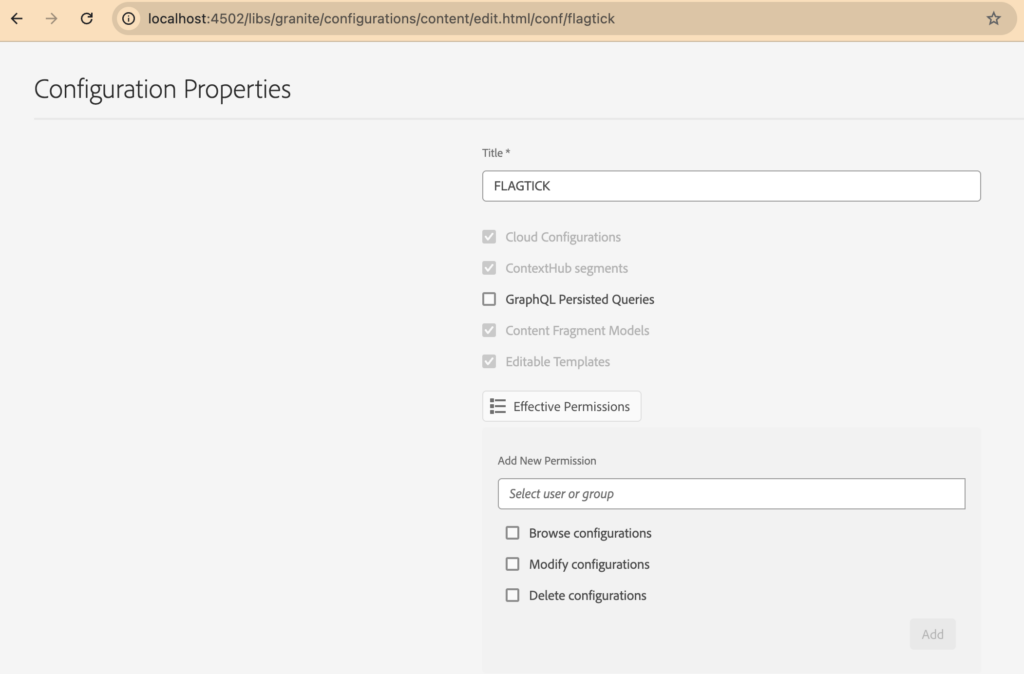
In projects generated from the Maven archetype, this configuration is already provided at:
/conf/${appId}Within this configuration, AEM defines:
- template types — structure
- templates — used by pages
- policies — control components and authoring
From here, you can:
- use the default setup
- extend templates
- create your own templates and configurations
Template types define the structure, templates are created from them, and pages reference the template via cq:template—forming the core flow in AEM.
This flow is shown in the diagram below.

In practice, this flow is handled in the Template Console, where templates are created and their structure comes from template types.
The screen below shows this in the Template Editor.
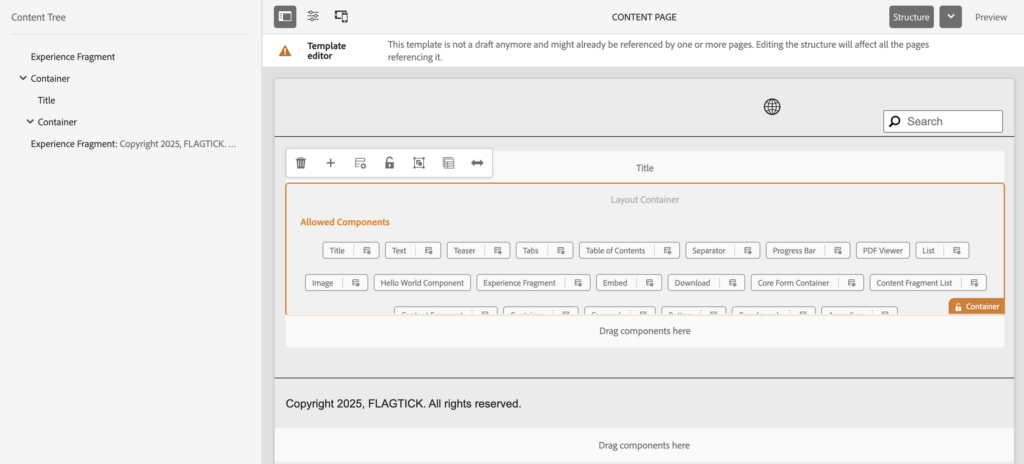
For more details on template types and templates in AEM:
Start with the default page-content template from the Maven archetype.
Its configuration is defined in
.content.xml, where properties such ascq:templateTypelink it to its structure.
Below is how this is defined in the repository.
// src/main/content/jcr_root/conf/${appId}/settings/wcm/templates/page-content/.content.xml
<?xml version="1.0" encoding="UTF-8"?>
<jcr:root xmlns:jcr="http://www.jcp.org/jcr/1.0" xmlns:cq="http://www.day.com/jcr/cq/1.0"
    jcr:primaryType="cq:Template">
    <jcr:content
        cq:isDelivered="{Boolean}false"
        cq:lastModified="{Date}2019-12-02T17:37:24.544+01:00"
        cq:lastModifiedBy="admin"
        cq:lastReplicated="{Date}2025-11-06T15:18:50.537+07:00"
        cq:lastReplicated_publish="{Date}2025-11-06T15:18:50.537+07:00"
        cq:lastReplicatedBy="workflow-process-service"
        cq:lastReplicatedBy_publish="workflow-process-service"
        cq:lastReplicationAction="Activate"
        cq:lastReplicationAction_publish="Activate"
        cq:templateType="/conf/${appId}/settings/wcm/template-types/page"
        jcr:description="My Site Page Template"
        jcr:mixinTypes="[cq:ReplicationStatus2]"
        jcr:primaryType="cq:PageContent"
        jcr:title="Content Page"
        status="enabled"/>
</jcr:root>Full definition includes many system-managed properties; below is a simplified version with key properties.
// src/main/content/jcr_root/conf/${appId}/settings/wcm/templates/page-content/.content.xml
<?xml version="1.0" encoding="UTF-8"?>
<jcr:root xmlns:jcr="http://www.jcp.org/jcr/1.0" xmlns:cq="http://www.day.com/jcr/cq/1.0"
          jcr:primaryType="cq:Template">
    <jcr:content
        cq:lastModified="{Date}2024-10-23T11:20:26.342-05:00"
        cq:lastModifiedBy="admin"
        cq:templateType="/conf/${appId}/settings/wcm/template-types/page"
        jcr:description="Flex Page Template. It includes XF for header and footer."
        jcr:primaryType="cq:PageContent"
        jcr:title="Flex Page"
        status="enabled"/>
</jcr:root>This template points to a template type, which defines its structure.
In Maven archetype, template type page exists under
/conf/…/template-types/pageand is referenced by templates viacq:templateType. Root node (.content.xmlunder template type) defines the template type, while structure, initial content, and policies live in child nodes.
// /conf/${appId}/settings/wcm/template-types/page
<?xml version="1.0" encoding="UTF-8"?>
<jcr:root xmlns:jcr="http://www.jcp.org/jcr/1.0" xmlns:cq="http://www.day.com/jcr/cq/1.0"
    jcr:primaryType="cq:Template">
    <jcr:content
        jcr:description="Generic template for empty pages of My Site"
        jcr:primaryType="cq:PageContent"
        jcr:title="Page"/>
</jcr:root>Structure, initial content, and policies are defined separately from the root node. They determine how a template is preconfigured when a page is created.
Focus on structure first, as it defines layout and default components applied to pages.
Configured in:
// /conf/${appId}/.../page-content/structure/.context.xml
root
├── experiencefragment-header   ← directly inside root
├── container
│   ├── title
│   └── container (editable)
└── experiencefragment-footer ← directly inside rootStructure can be adjusted based on layout needs.
For example:
// /conf/${appId}/.../page-content/structure/.context.xml
root
└── container
    ├── container_unixtimestamp
    │   └── experiencefragment_h (header)
    ├── container (editable)
    └── container_unixtimestamp
└── experiencefragment_f (footer)Choose a structure that matches the page layout you want to deliver.
In Template Editor, this appears in the Structure panel:
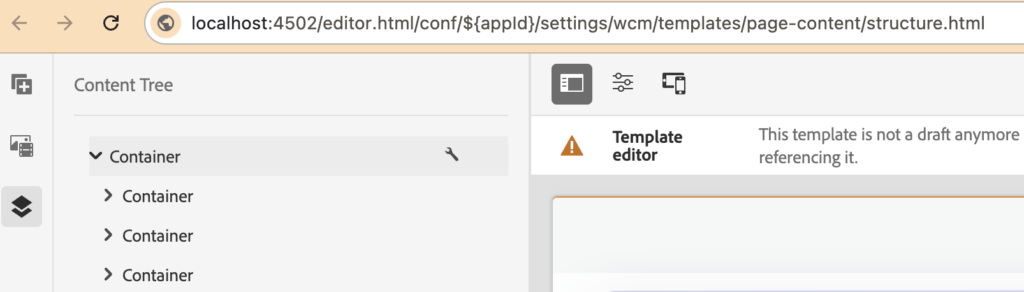
Structure is typically created in Template Editor rather than editing XML directly, following a workflow like:

Next, see how this structure is applied at page level. Start with the root container, which defines the main layout scope of the page.
Example:
<root
      jcr:lastModified="{Date}2024-08-09T13:54:09.350-05:00"
      jcr:lastModifiedBy="admin"
      jcr:primaryType="nt:unstructured"
      sling:resourceType="${appId}/components/container"
      id="root-container"
      layout="responsiveGrid">

      <container>
            <container_unixtimestamp/>
            <container/>
            <container_unixtimestamp/>
</container> Structure defines layout. Policies define what can happen inside it.
Policies define allowed components and behavior. They are stored under
/conf/…/policies, referenced by templates, and inherited by pages.
In Template Editor, this is configured through Page Policy on the root container.
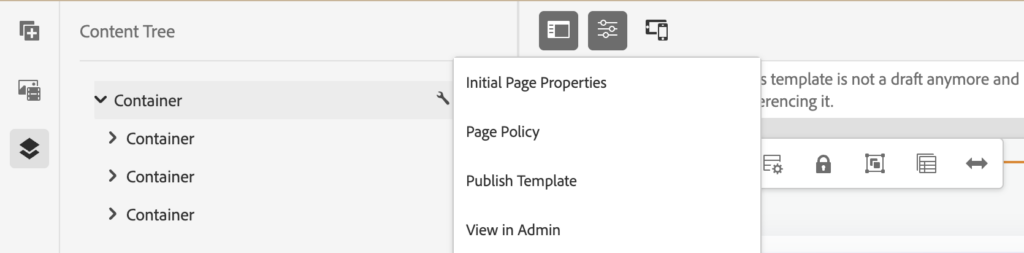
After configuring Page Policy, the settings are stored under /conf/.../settings/wcm/policies and linked to the root container via cq:policy.
// wcm/policies/.content.xml
<page jcr:primaryType="nt:unstructured">
    <policy
            jcr:description="Includes the required client libraries."
            jcr:primaryType="nt:unstructured"
            jcr:title="Generic Page"
            sling:resourceType="wcm/core/components/policy/policy"
            clientlibs="[${appId}.dependencies,${appId}.site]"
            clientlibsJsHead="${appId}.dependencies">
        <jcr:content jcr:primaryType="nt:unstructured"/>
    </policy>
</page>Policies support additional configuration beyond default tabs such as Properties and Styles.
For example:
- enable GTM
- enable analytics scripts
- enable tracking pixels
Example with extended policy:
// wcm/policies/.content.xml
<page jcr:primaryType="nt:unstructured">
    <policy_unixtimestamp
        jcr:description="Custom Page policy. Includes required client libraries."
        jcr:primaryType="nt:unstructured"
        jcr:title="Custom Page"
        sling:resourceType="wcm/core/components/policy/policy"
        clientlibs="[${appId}.dependencies,${appId}.site]"
        clientlibsAsync="{Boolean}false"
        clientlibsHead="[${appId}.dependencies]"
        enableGTM="{Boolean}true"
        enableAnalyticsScripts="{Boolean}true"
        enableTracking="{Boolean}true">
        <jcr:content jcr:primaryType="nt:unstructured"/>
    </policy_unixtimestamp>
</page>Policies apply at the page level through the root container, but are defined per component.
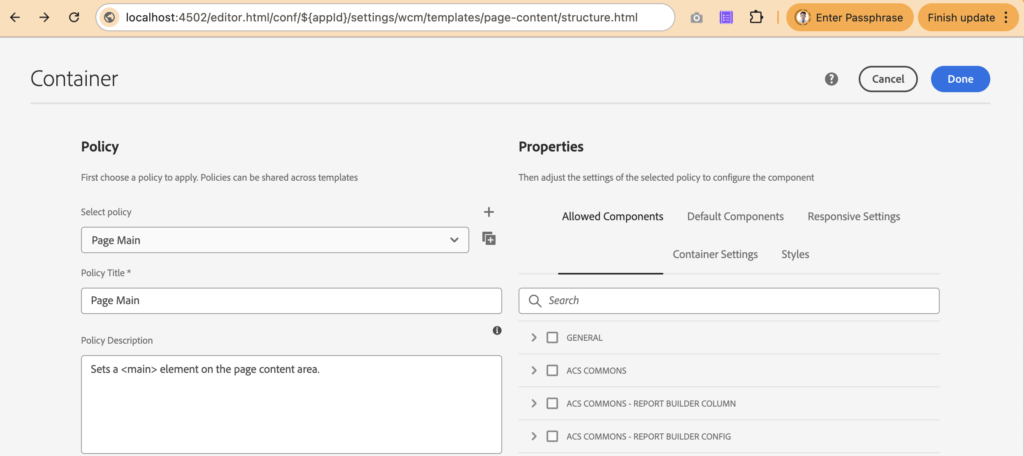
Allowed Components is a policy configuration that controls which components can be added to a container.
At runtime, policies are resolved via cq:policy mappings defined on template components.
Above screenshot shows policy applied to the Container component. Example below shows corresponding component-level policy node.
<policy_unixtimestamp
        cq:styleDefaultElement="main"
        jcr:description="Sets a <main> element on the page content area."
        jcr:primaryType="nt:unstructured"
        jcr:title="Page Main"
        sling:resourceType="wcm/core/components/policy/policy">
    <jcr:content jcr:primaryType="nt:unstructured"/>
</policy_unixtimestamp>Templates assign policies under templates/…/policies. cq:policy maps each component to its policy node.
Example mapping:
<root
    cq:policy="${appId}/components/container/policy_unixtimestamp"
    jcr:primaryType="nt:unstructured"
    sling:resourceType="wcm/core/components/policies/mapping">

  <experiencefragment-header
        cq:policy="${appId}/components/experiencefragment/policy_header"
        jcr:primaryType="nt:unstructured"
sling:resourceType="wcm/core/components/policies/mapping"/>When using Template Editor, these mappings are generated automatically. For maintainability, policy node names can be adjusted to meaningful names instead of auto-generated ones.
Next is how structure and initial content come together when a page is created.
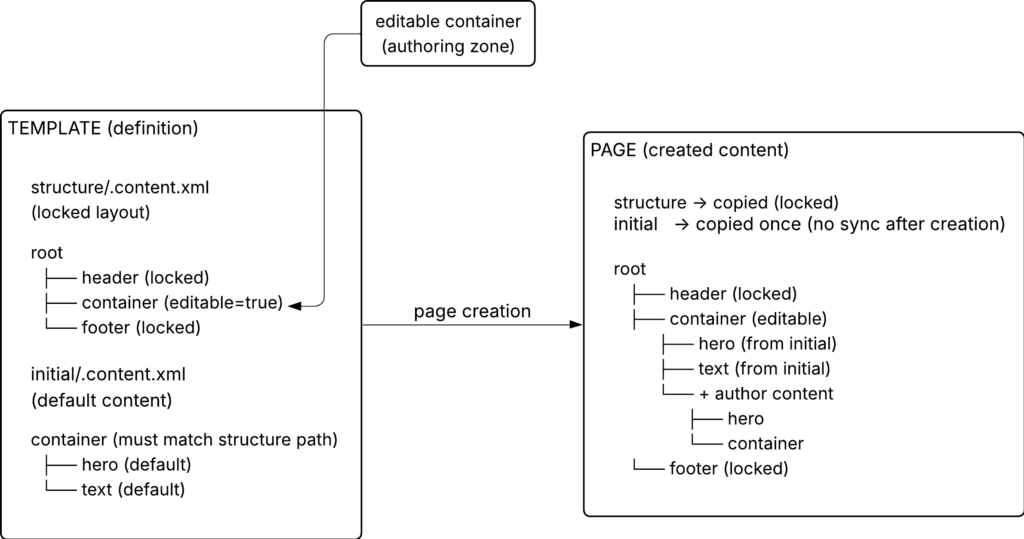
After analyzing a template (such as page-content)—including its structure, initial content, and policies—you can copy it into a template type and adjust it as a preconfigured base.
Template type serves as the source of truth for creating and reusing templates across pages. Templates are created from it, and their configuration is applied and exposed at page level.
From Template Configuration to Component Rendering in AEM
Page-level configuration is defined by the page component referenced through sling:resourceType.
In ui.apps, the page component (for example: /apps/${appId}/components/page) defines the structure, scripts, and authoring options applied to the page.
// apps/${appId}/components/page
├── .content.xml
├── customfooterlibs.html
└── customheaderlibs.htmlAdditional configuration is defined through dialogs.
_cq_design_dialog controls configuration at policy level, enabling flags such as enableGTM, enableAnalyticsScripts, and enableTracking.
// apps/${appId}/components/page/_cq_design_dialog
└── .content.xmlExample:
<enableGTM
        jcr:primaryType="nt:unstructured"
        jcr:title="Google Tag Manager Fields"
        sling:resourceType="granite/ui/components/coral/foundation/fixedcolumns">
    <items jcr:primaryType="nt:unstructured">
        <column
                jcr:primaryType="nt:unstructured"
                sling:resourceType="granite/ui/components/coral/foundation/container">
            <items jcr:primaryType="nt:unstructured">
                <enableGTM
                    jcr:primaryType="nt:unstructured"
                    sling:resourceType="granite/ui/components/coral/foundation/form/checkbox"
                    fieldDescription="Check to Show Google Tag Manager"
                    fieldLabel="Show Google Tag Manager"
                    uncheckedValue="false"
                    value="true"
                    name="./enableGTM"
                    text="Show Google Tag Manager"/>
            </items>
        </column>
    </items>
</enableGTM>Template-driven configuration in _cq_design_dialog defines flags (for example, cqDesign.enableGTM) that control whether related fields are shown in _cq_dialog.
// apps/${appId}/components/page/_cq_dialog/.content.xml
<?xml version="1.0" encoding="UTF-8"?>
<jcr:root
    xmlns:sling="http://sling.apache.org/jcr/sling/1.0"
    xmlns:jcr="http://www.jcp.org/jcr/1.0"
    xmlns:nt="http://www.jcp.org/jcr/nt/1.0"
    xmlns:granite="http://www.adobe.com/jcr/granite/1.0"
    jcr:primaryType="nt:unstructured"
    jcr:title="Page Properties"
    sling:resourceType="cq/gui/components/authoring/dialog">
    <content
        jcr:primaryType="nt:unstructured"
        sling:resourceType="granite/ui/components/coral/foundation/container">
        <items jcr:primaryType="nt:unstructured">
            <tabs
                jcr:primaryType="nt:unstructured"
                sling:resourceType="granite/ui/components/coral/foundation/tabs">
                <items jcr:primaryType="nt:unstructured">
                    <customTab
                        jcr:primaryType="nt:unstructured"
                        jcr:title="Custom Settings"
                        sling:resourceType="granite/ui/components/coral/foundation/container">

                        <items jcr:primaryType="nt:unstructured">
                            <gtmHeadScripts
                                jcr:primaryType="nt:unstructured"
                                ...
                                fieldLabel="GTM Head Scripts"
                                name="./GTMHeadScripts"
                                granite:hide="${!cqDesign.enableGTM}"/>
                        </items>
                    </customTab>
                </items>
            </tabs>
        </items>
    </content>
</jcr:root>When enabled, authors can enter values (for example, GTM scripts) at page level. These values are stored on the page node (for example, ./GTMHeadScripts), meaning each page owns its own content.
Template-driven configuration stays centralized, while page content is stored on each page. Changes to the template (such as structure or policies) do not override existing pages, so each page continues using its own stored content and configuration.
Page configuration follows a clear flow: template defines rules, dialog defines inputs, and the page stores values. Sling Models read this data, and HTL renders the final output.
Now move to the presentation layer at the page component level. HTL files (such as head.html, body.html) and Sling Models read data from the JCR and render it into the DOM.
├── _cq_design_dialog
   └── .content.xml
├── _cq_dialog
   └── .content.xml
├── body.html
├── customfooterlibs.html
├── customheaderlibs.html
├── favicons.html
└── head.htmlStart with a simple example: Title component.
In static HTML, a title is written directly:
<div class="cmp-title">
  <h1 class="cmp-title__text">Page Title</h1>
</div>In AEM, the same output comes from a component defined by sling:resourceType. A node in the JCR points to that component:
// apps/${appId}/components/title/.content.xml
sling:resourceSuperType="core/wcm/components/title/v3/title"This mapping tells AEM which component handles rendering. The base implementation lives under /libs/core/wcm/components, where HTL and Sling Models define the default behavior.
Custom components under /apps extend these base components using sling:resourceSuperType, allowing you to reuse and override behavior without copying the original code.
For example, extending the Title component:
// apps/${appId}/components/title
├── .content.xml
└── _cq_editConfig.xmlFor presentation customization, add title.html:
// apps/${appId}/components/title
├── .content.xml
├── title.html
└── _cq_editConfig.xmlIn title.html, HTL reads data through the Sling Model:
<div data-sly-use.title="com.adobe.cq.wcm.core.components.models.Title"
     data-sly-use.template="core/wcm/components/commons/v1/templates.html"
     data-sly-test.text="${title.text}"
     data-cmp-data-layer="${title.data.json}"
     id="${title.id}"
     class="cmp-title">

  <h1 class="cmp-title__text" data-sly-element="${title.type}">
    <a data-sly-unwrap="${!title.link.valid || title.link.disabled}"
       class="cmp-title__link"
       data-sly-attribute="${title.link.htmlAttributes}"
       data-cmp-clickable="${title.data ? true : false}">
      ${text @ context='text'}
    </a>
  </h1>
</div>At runtime, AEM reads the content from the JCR, resolves the resourceType to the Title component, and renders HTML through HTL and the Sling Model.
HTML is the result. Components and resourceType define how content becomes HTML.
How Structure and Initial Content Shape a Page
Structure defines slots. Initial content fills them. Layout defines where content can exist, while initial content provides default components inside those areas.
Example (structure/.content.xml):
<experiencefragment-header />
<container>
    <title editable="{Boolean}true"/>
    <container editable="{Boolean}true"/>
</container>
<experiencefragment-footer />Example (initial/.content.xml):
<container>
    <title />
    <container />
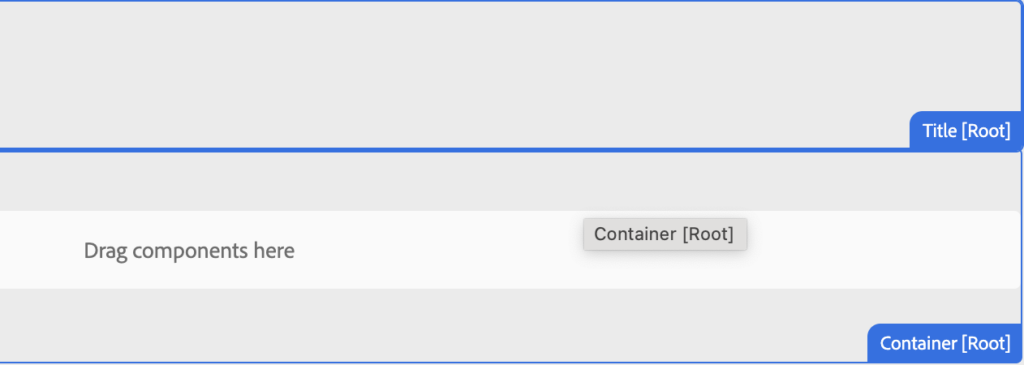
</container>In the editor, nodes marked with editable="{Boolean}true" define authoring areas. Containers provide drop zones for adding and arranging components, while leaf components such as Title allow only content editing.
Author content is stored on the page and remains independent of future template changes.
Initial content is applied by matching the same hierarchical path within editable containers, as shown below.
TEMPLATE STRUCTURE (structure/.content.xml)
------------------------------------------
root
├── experiencefragment-header (locked)
├── container (layout)
│ ├── title (editable=true) ← slot A
│ └── container (editable=true) ← slot B
└── experiencefragment-footer (locked)
INITIAL CONTENT (initial/.content.xml)
-------------------------------------
root
└── container
├── title ← matches slot A
└── container ← matches slot B
PAGE RESULT (after creation)
----------------------------
root
├── experiencefragment-header (locked)
├── container
│ ├── title ← filled from initial
│ └── container ← filled from initial
│ └── (+ author content later)
└── experiencefragment-footer (locked)Now consider a variation where only a single editable container is defined in the structure:
<container>
<container_unixtimestamp>
<experiencefragment-header />
</container_unixtimestamp >
<container editable="{Boolean}true" />
<container_unixtimestamp>
<experiencefragment-footer />
</container_unixtimestamp>
</container>And the corresponding initial content:
<container>
<container>
    <title />
    <container />
</container>
</container>This mapping fills structure slots during page creation.
Without
editable="{Boolean}true", the layout is fixed—components can be edited, but not added, removed, or rearranged.
Editable containers define authoring areas. Content lives inside and can be freely managed.
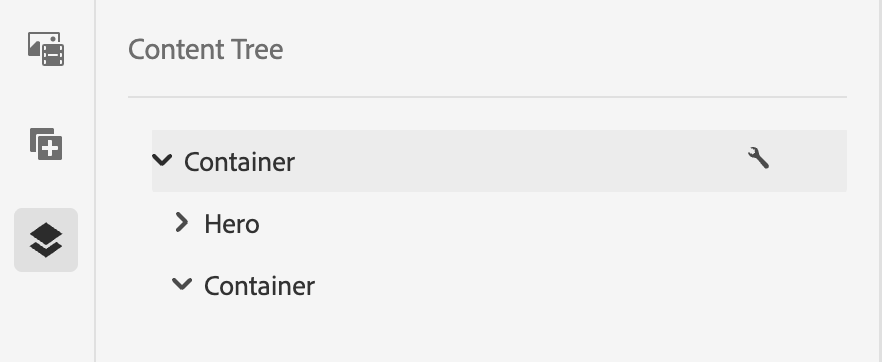
At this stage, content exists only within a single page. There is no shared source across pages. This works for a single page—but breaks down when the same content must be reused across regions.
To solve this, AEM introduces a centralized source under /content/${appId}/language-masters. Pages created here act as the Blueprint, combining template structure with authored content before being replicated across regions.
For example:
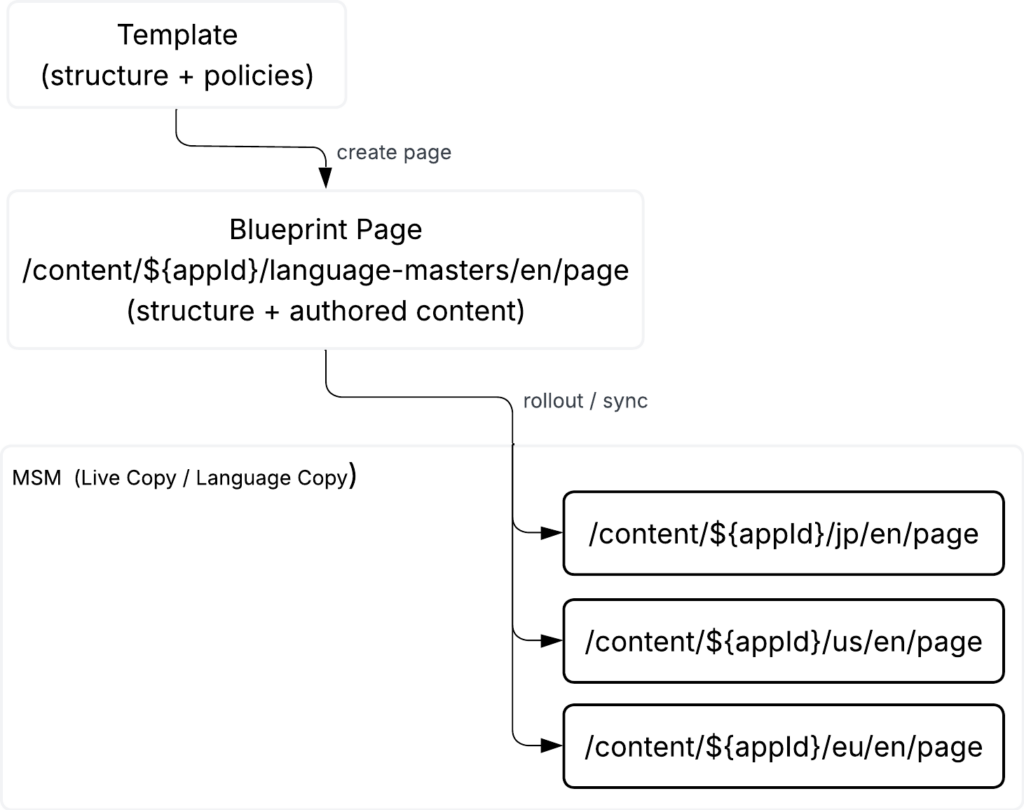
From the Blueprint, AEM MSM (Live Copy / Language Copy) rolls out and synchronizes content to regional pages under /content/${appId}.
Content shifts from isolated pages to a centralized source, where structure and content are defined once and reused across regions. Regional pages inherit and can override when needed.
Key Takeaway
AEM assembles pages at runtime from structure, components, and JCR content.
Every layer has a clear role:
- Template types define the base structure
- Templates are created from them and referenced by pages via
cq:template - Policies control allowed components and authoring behavior
- Components map JCR content to HTML through HTL and Sling Models
- Initial content pre-fills editable areas when a page is created
- MSM scales that structure across regions without duplicating it
Static HTML is where development starts — but it’s never the source of truth.
The source of truth is structure. And the layer above that — where tokens, components, and design decisions originate — lives in your design system, not in AEM.
Model pages the way AEM expects, and the rendering model stops feeling magical.
→ Figma Is Not the Source of Truth—Your Design Tokens Are